
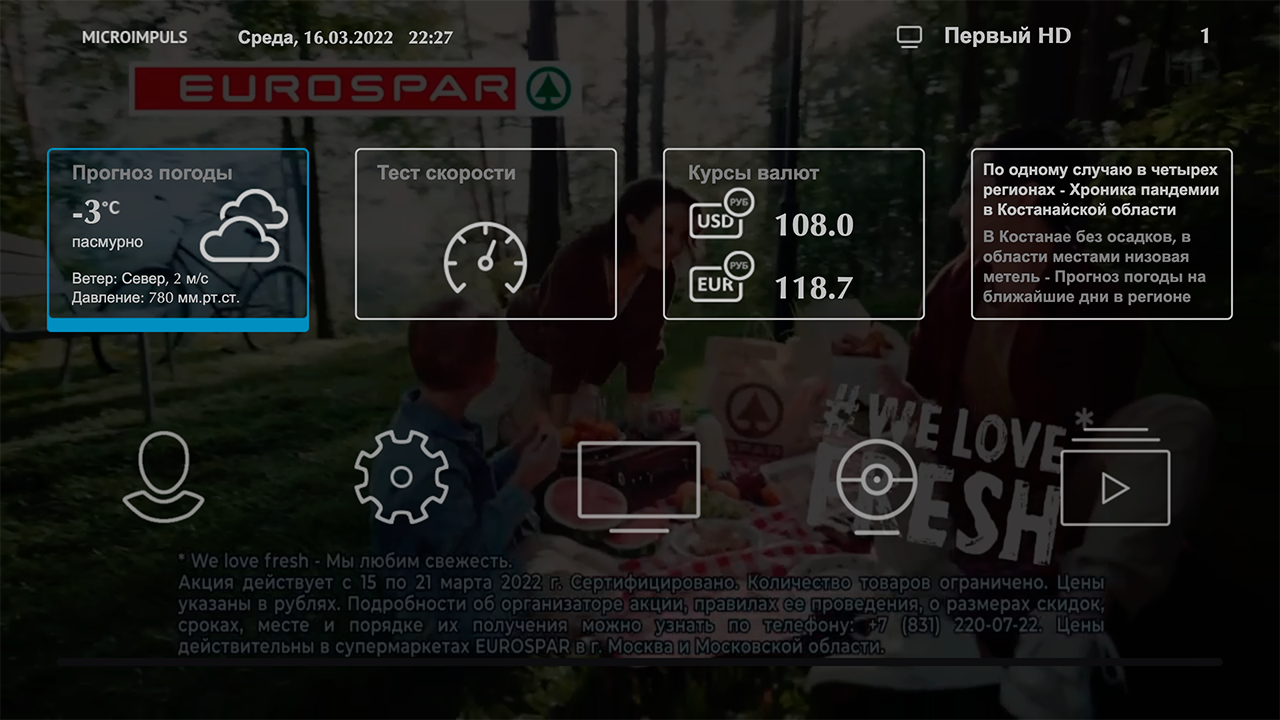
In design templates Futuristic, Impulses and Infinitly applications are displayed in the "Services", "Apps" or in the main menu and are various additional mini-services: weather forecast, currency rate, search, news, payment, speed test and so on.
Application types:
- Web application in an external window Any URL that opens in the browser of the device. The peculiarity of this type of application is that not all devices after opening it can be returned to the parent application.
- Web application in the internal window this type of application is used for custom operator widgets developed to order.
- Link to the video library section when creating this type of widget in the application, another link will appear to open the video library (in the main menu or in the list of services, depending on the widget settings).
- Link to TV section When creating this type of widget in the application, another link will appear to open the TV menu (in the main menu or in the list of services, depending on the widget settings).
- Reproduction of stream by reference - playback of any stream by the link specified in the field "URL / Name / Application ID".
- Android settings screen A widget that opens Android system settings when you start
- Android app menu – a widget that opens the system menu of Android apps when you start
- Launching the Android application on AppId A widget that opens a given system or installed Android application.
- Launching the system application by ID - an analogue of the widget "Run Android application on AppId", but designed for other devices with the ability to run external applications. At the moment, this feature is available on Tvip consoles (application identifiers can be found in the official Tvip documentation) https://wiki.tvip.ru/stb/system_uri ), Samsung Smart TVs 2015-2019 release and Imaqliq consoles (identifiers youtube and youtube_kids).
- Widget an internal widget designed specifically for the template will be added to the application (below is a description of the available widgets).
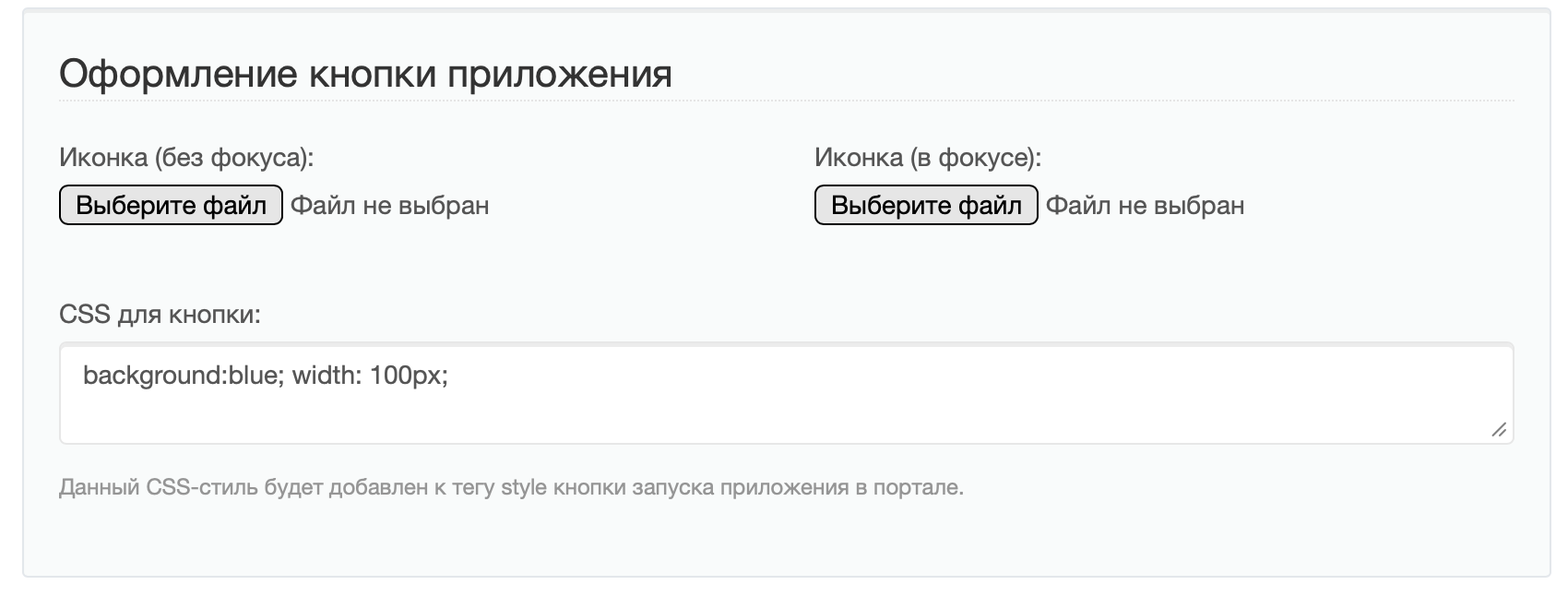
Setting up styles for the application button
In templates Futuristic, Impulses, Sevstar and Sevstar X supports customization of the appearance of the application button through CSS-styles transmitted to the style property of the element. However, the styles apply only to the root container of the application – you can not use pseudoselectors or refer to child elements.
It is recommended to use only CSS properties from version 2, as experimental or newer properties may not work on TV set-top boxes and Smart TV devices.
Special attention should be paid to dimensional parameters: it is not recommended to change the height and width of the buttons, as this can lead to a violation of the overall layout of the interface.
Futuristic
Displaying widgets on the main screen
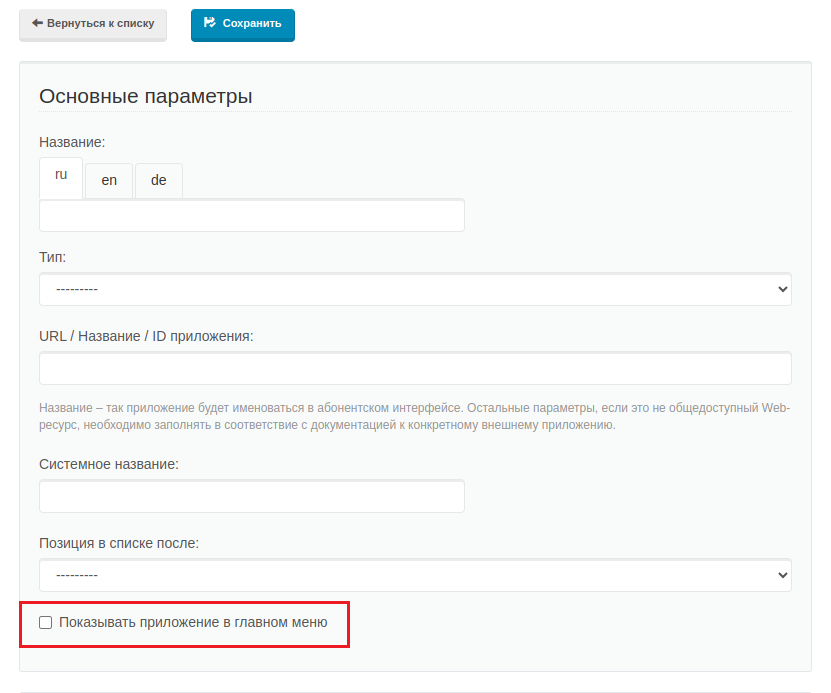
In order for widgets to appear on the main screen of the Futuristic template, it is necessary in the main parameters of the widget to set a tick opposite the item “Show the application in the main menu”. Otherwise, the widget will be available in the "Services" section or not at all.
The list of widgets that will be available in the "Services" section if the "Show the application in the main menu" option is disabled:
- Speed test
- News
- Payment by QR
- Search
Widget "Speed Test"
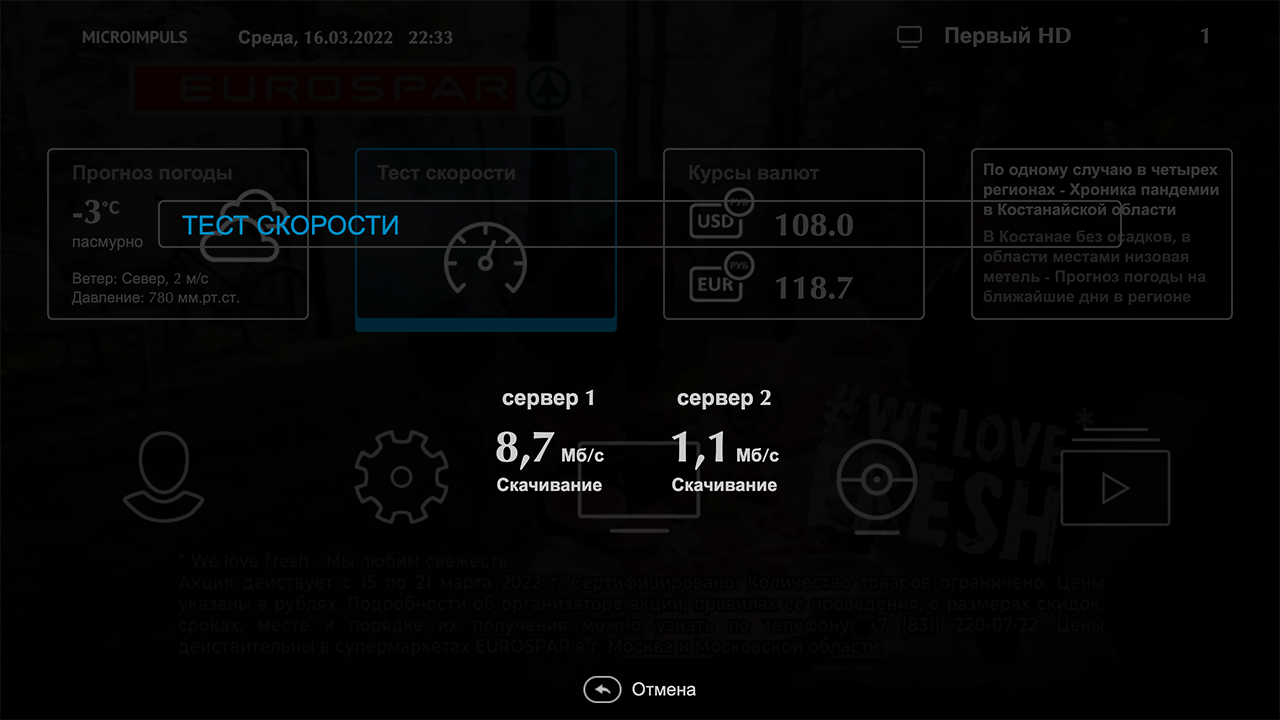
The speed measurement is based on image download data from a remote server, so the configuration algorithm for this widget includes the following steps:
- On all servers to which you need to measure the speed, you need to put this data picture.
- In the Smarty administration panel in the “App Directory” section, create a new application with fields:
Title: any, it will be displayed in the interface
System name:SpeedTestWidget
TypeWidget
URL / Application name / ID:/templates/futuristic/default/apps/speedtest-widget/speedtest.widget.js - For each server in the "Additional Attributes" block, you need to specify the following parameters:
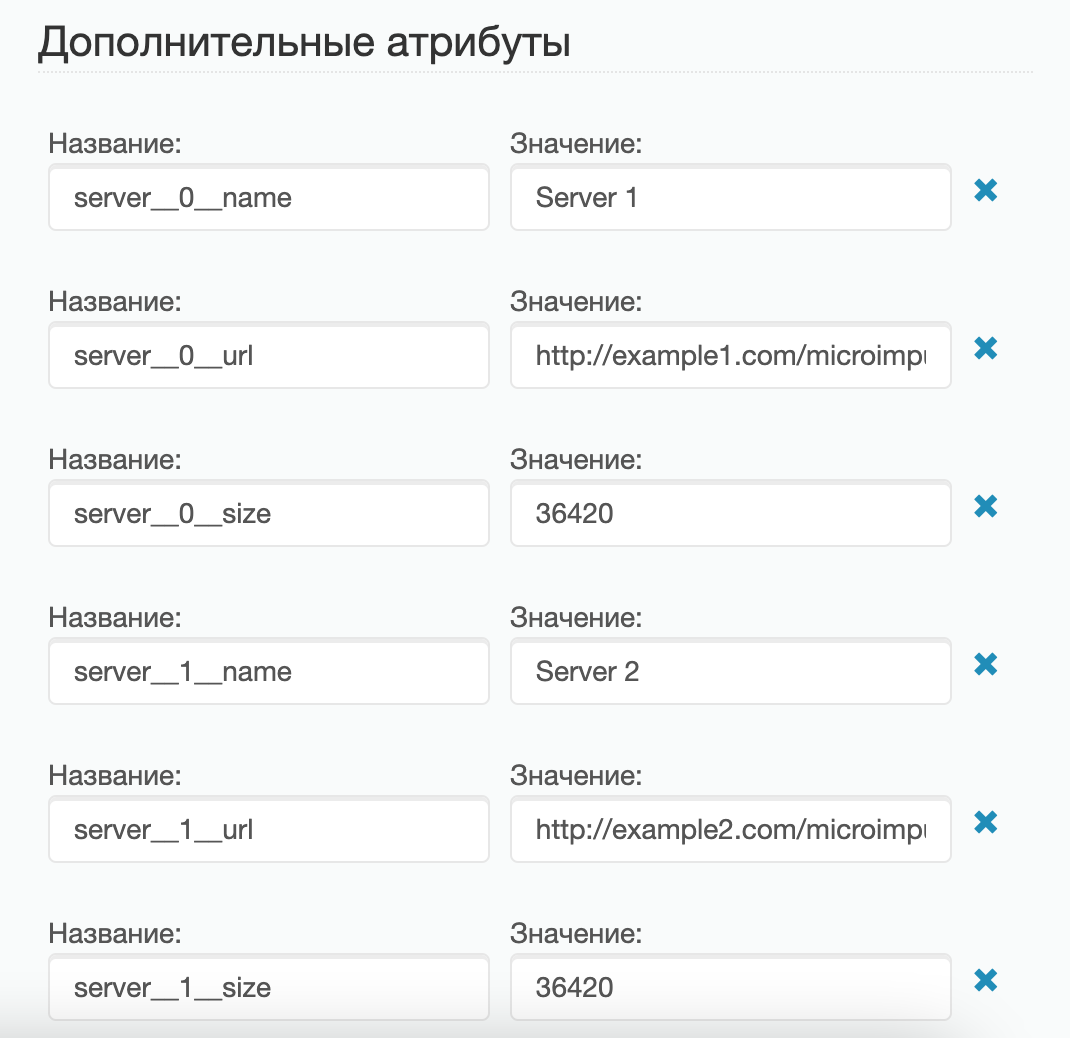
server____________: server name for display in templateserver__0__url: адрес до картинки на этом сервере, например: http://example.com/microimpuls.png (мы подобрали оптимальный размер изображения для измерения скорости)server__0____ize: the size of the picture in bytes, for the picture we provide is 16115141.
Note: within this widget you can specify several different servers. To do this, you need to consistently specify the parameters of each server, as in the screenshot below:
To display the widget in the mobile application, you need to add an option show meaningfully true on the “STB and Application Settings” page in the “Portal and Application Configuration” section.
The Channel Widget
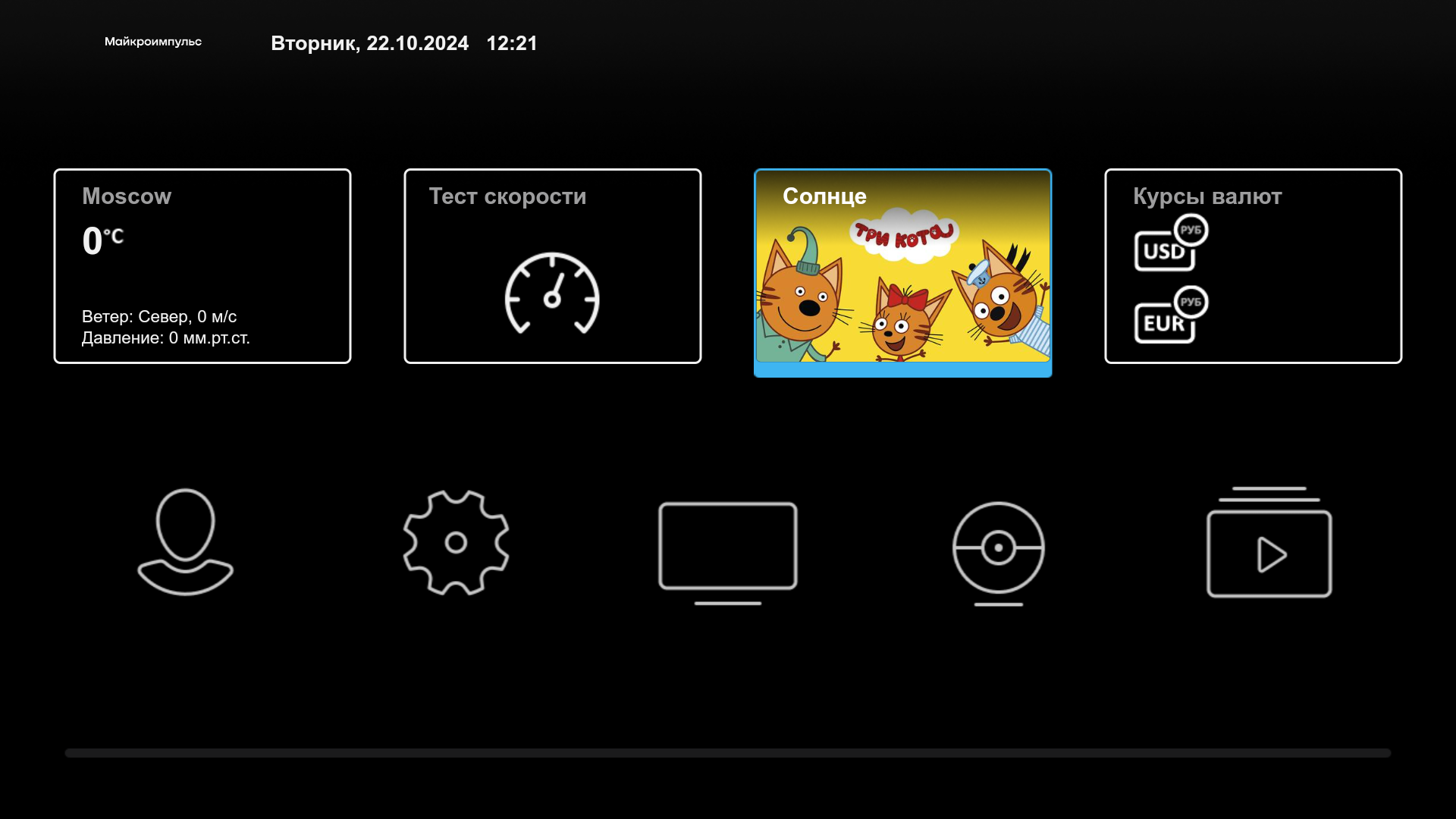
This widget provides an opportunity to display on the main screen a link to any channel specified in the widget parameters. As an image of the button, a preview of the current transmission of this channel will be displayed. Below is the algorithm for creating a widget:
- In the Smarty administration panel in the “App Directory” section, create a new application with fields:
Titleany
System name:TV ChannelWidget
TypeWidget
URL / Application name / ID:/templates/futuristic/default/apps/tvchannel-widget/tvchannel.widget.js - For each widget in the "Additional Attributes" block, you need to prescribe the following parameters:
number: channel number in order in Smartyid: channel id in Smartyimage_url: Image URL to be displayed instead of channel preview (optional parameter)
Note: the parameters of the widget have the following priorities:
if the channel id is specified, the channel corresponding to this id will be displayed, even if the number parameter is specified;
if the number is given, the channel corresponding to the channel number will be displayed.
Weather forecast widget

This widget provides access to the weather forecast. If several cities are specified in the widget parameters, then thanks to the “City Choice” menu (opens by clicking on the widget), you can change the city for which the weather will be displayed in the widget window.
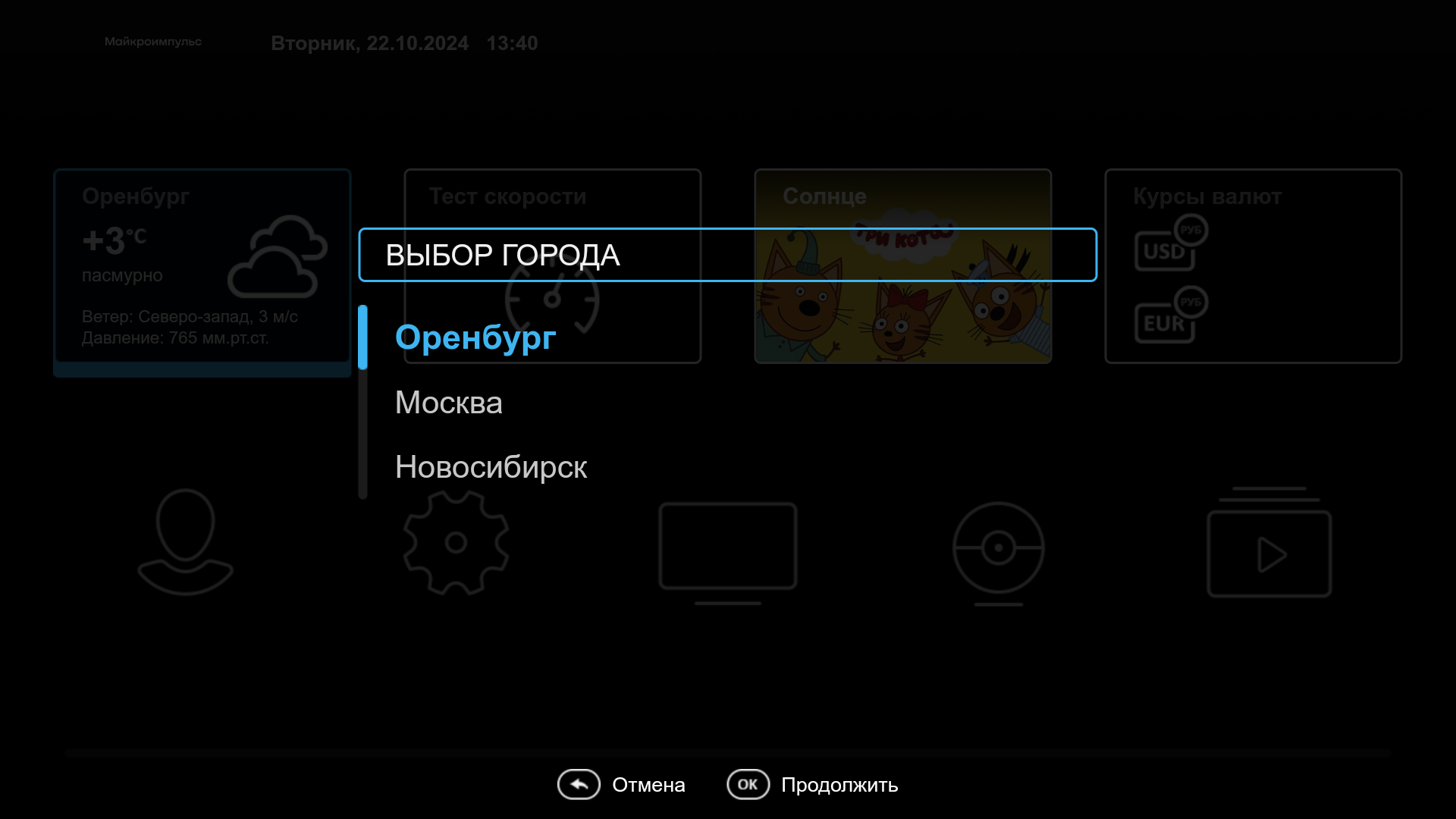
Algorithm for creating a widget:
- Configure the Smarty Config file:
In order for the Weather Forecast widget to work, you must specify the source of weather information using the parameterWEATHER_DEFAULT_BACKKEND. More information about this parameter (as well as other parameters of the Weather Forecast widget) can be found in the documentation section “Configuration and maintenance of Smarty” – “System parameters” – the block “Configuration of widgets and external applications”. - Restart uwsgi so that the settings take effect;
- In the Smarty administration panel in the “App Directory” section, create a new application with fields:
Titleany
System nameWeatherWidget
TypeWidget
URL / Application name / ID: /templates/futuristic/default/apps/weather-widget/weather.widget.js - Prescribe the parameters in the "Additional Attributes" block:
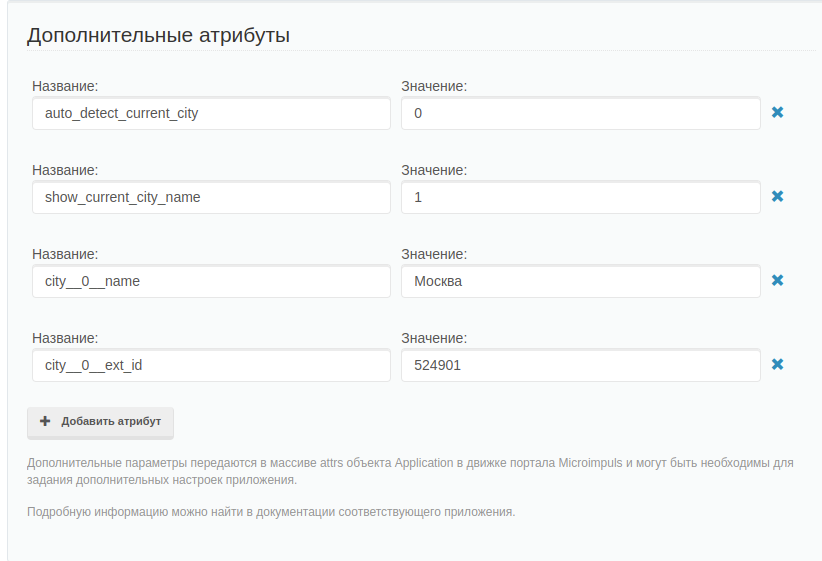
city__NUM__namecity namecity__NUM_id: city ID in Smartycity__NUM____________: city identifier in the weather source (can be specified instead of city__NUM__id)show_current_city_name1 - show the name of the city, 0 - do not show the name of the cityauto_deect_current_city1 – the device will automatically determine the city (by geolocation), 0 – the weather forecast will be displayed for the city by default
Attention! The value of the NUM parameter should begin with “0”.
Currency Course Widget
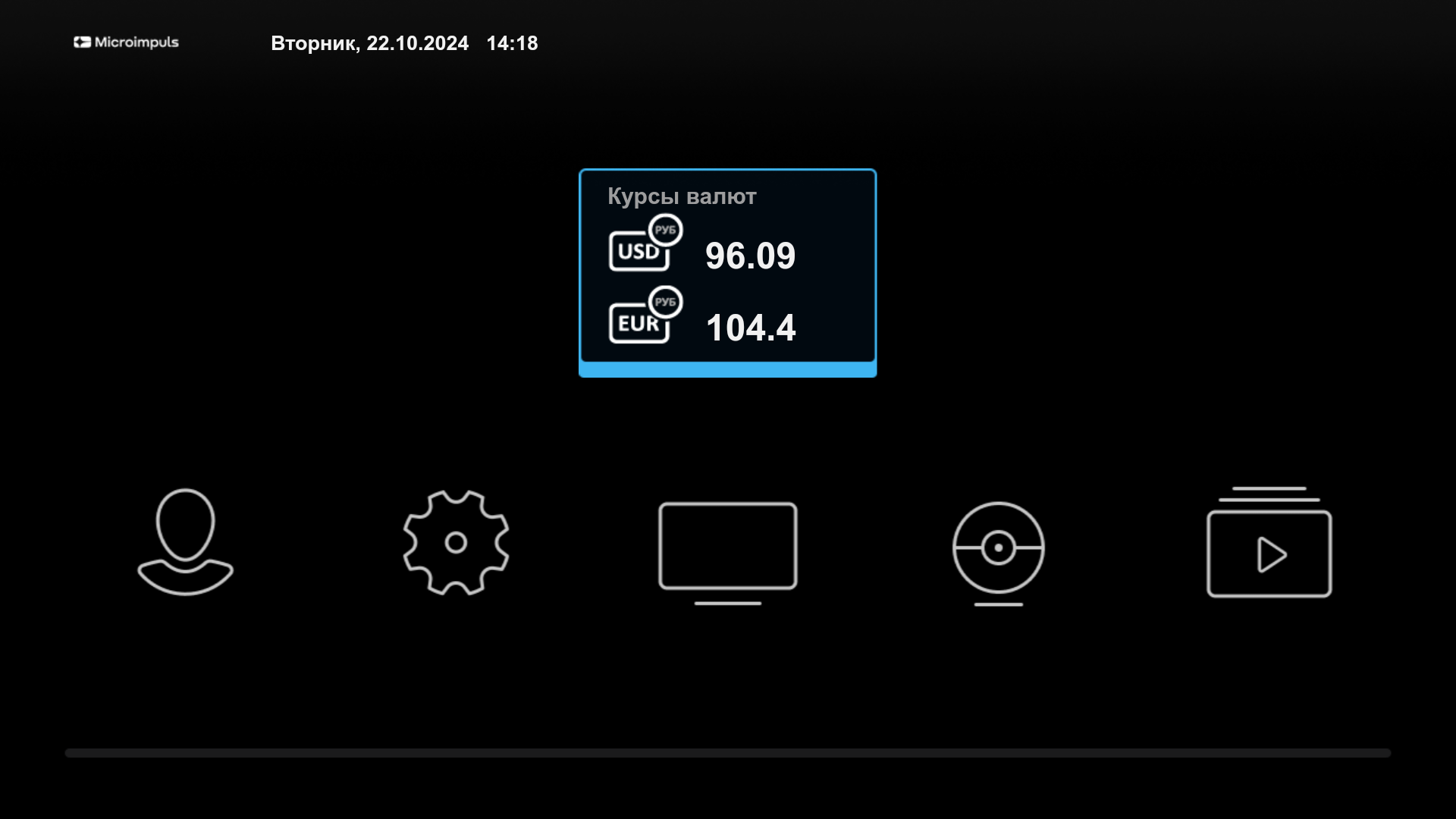
The Currency Course widget adds information on the current exchange rate against the other two currencies to the home screen. In order to configure this widget, you need to perform the following algorithm of actions:
- Configure the Smarty Config file:
Before proceeding to the widget configuration, it is necessary to determine which currencies will be used to display the rate in the widget. To do this, the following parameters are used in the Smarty config file:TVMIDDLEWARE_EXCHANGE_WIDGET_COUNTRY_CODEthe country code, depending on which the source of data for the exchange rate will be selected;TVMIDDLEWARE_EXCHANGE_WIDGET_FIRST_CURRENCYthe first currency in exchange for currencies;TVMIDDLEWARE_EXCHANGE_WIDGET_SECOND_CURRENCYthe second currency in the course of currencies.
Attention! More information about the parameters of the widget “Currency Course” can be found in the documentation section “Configuration and maintenance of Smarty” – “System parameters” – the block “Configuration of widgets and external applications”. - Restart uwsgi so that the Smarty configuration settings take effect;
- In the Smarty administration panel in the “App Directory” section, create a new application with fields:
Titleany
System name:ExchangeWidget
TypeWidget
URL / Application name / ID:/templates/futuristic/default/apps/exchange-widget/exchange.widget.js
The News Widget
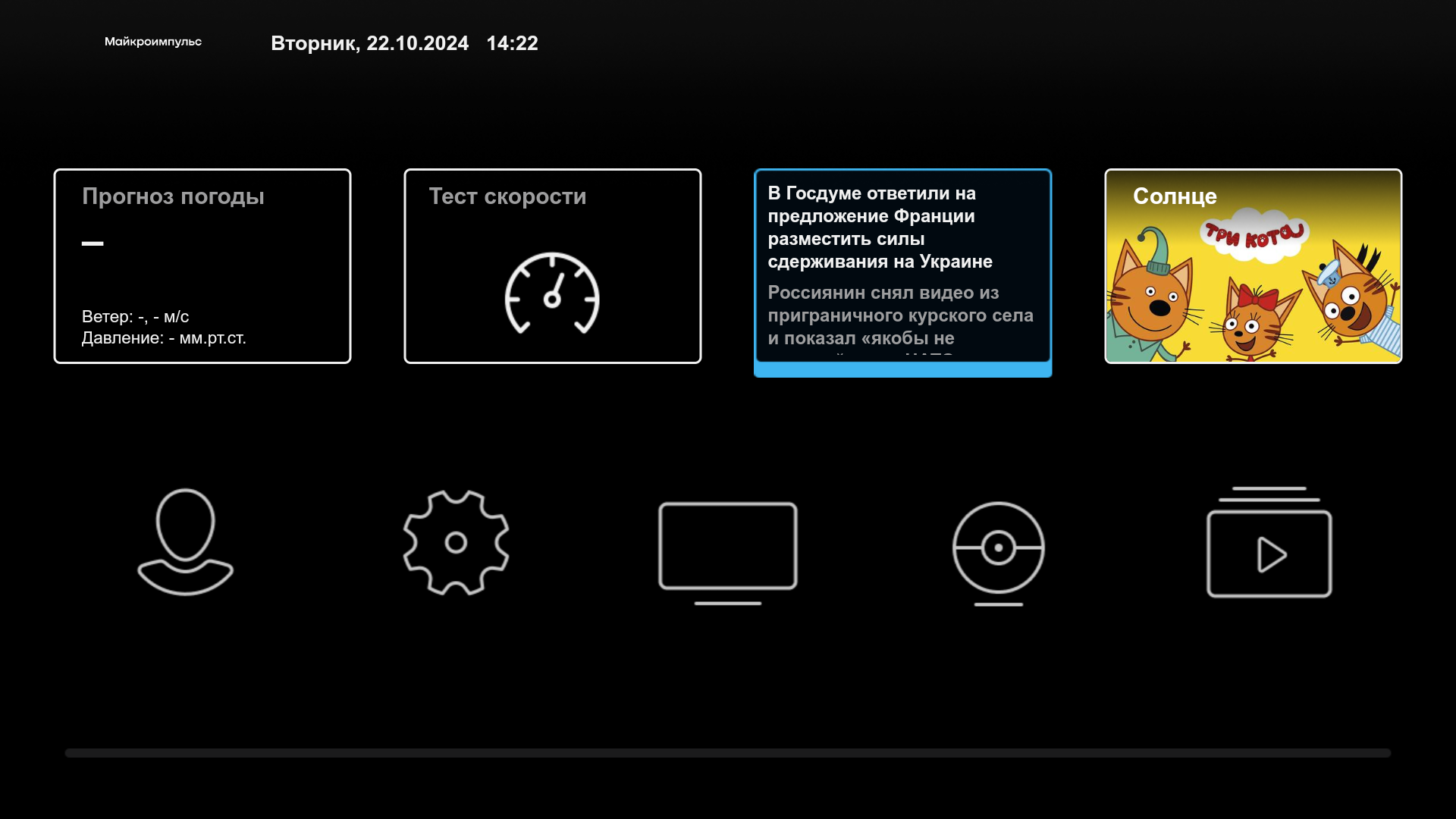
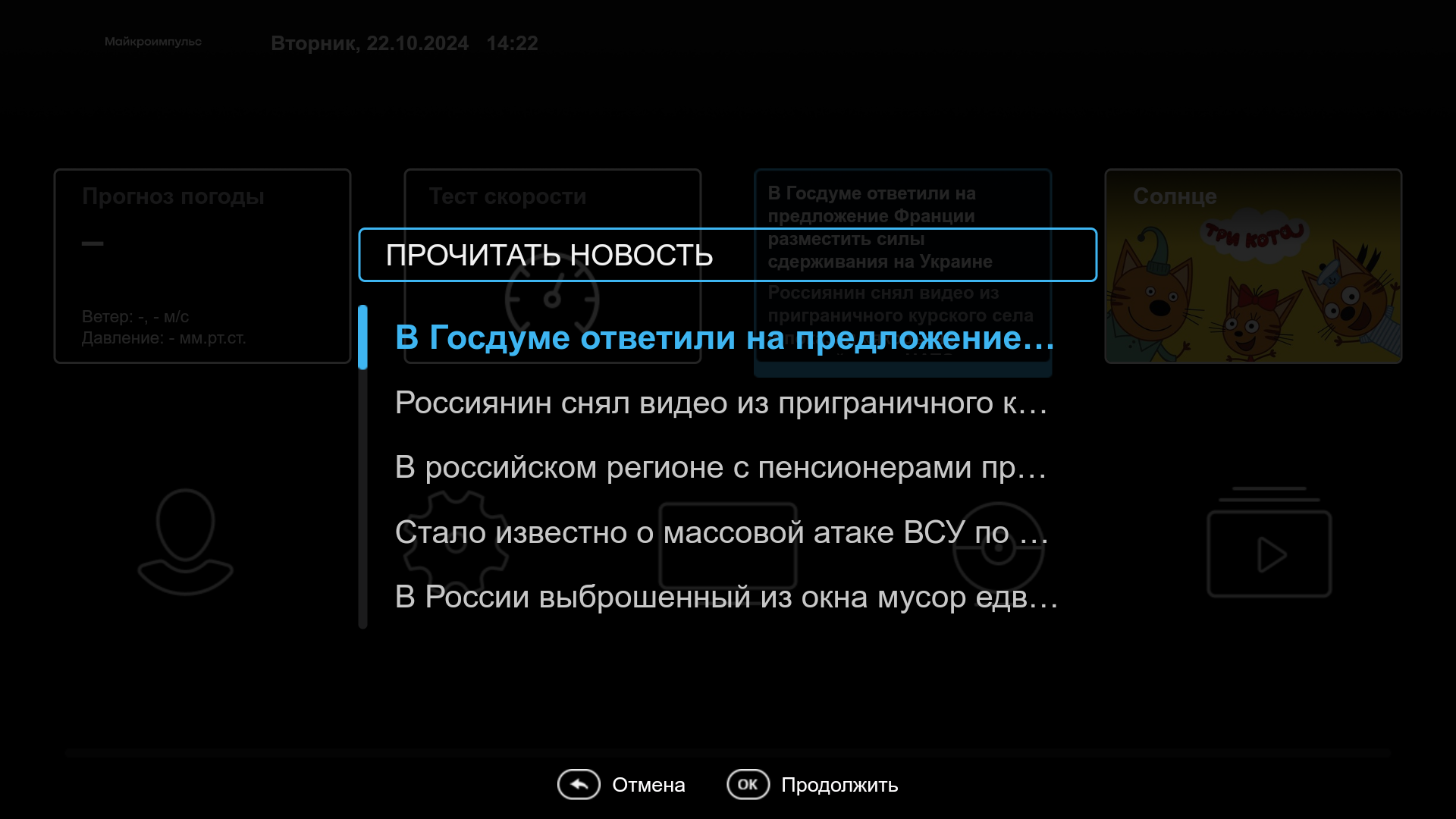
The News widget adds a news RSS feed to the home screen from the source specified in the widget settings. Clicking on the widget opens a list of news currently available in the feed:
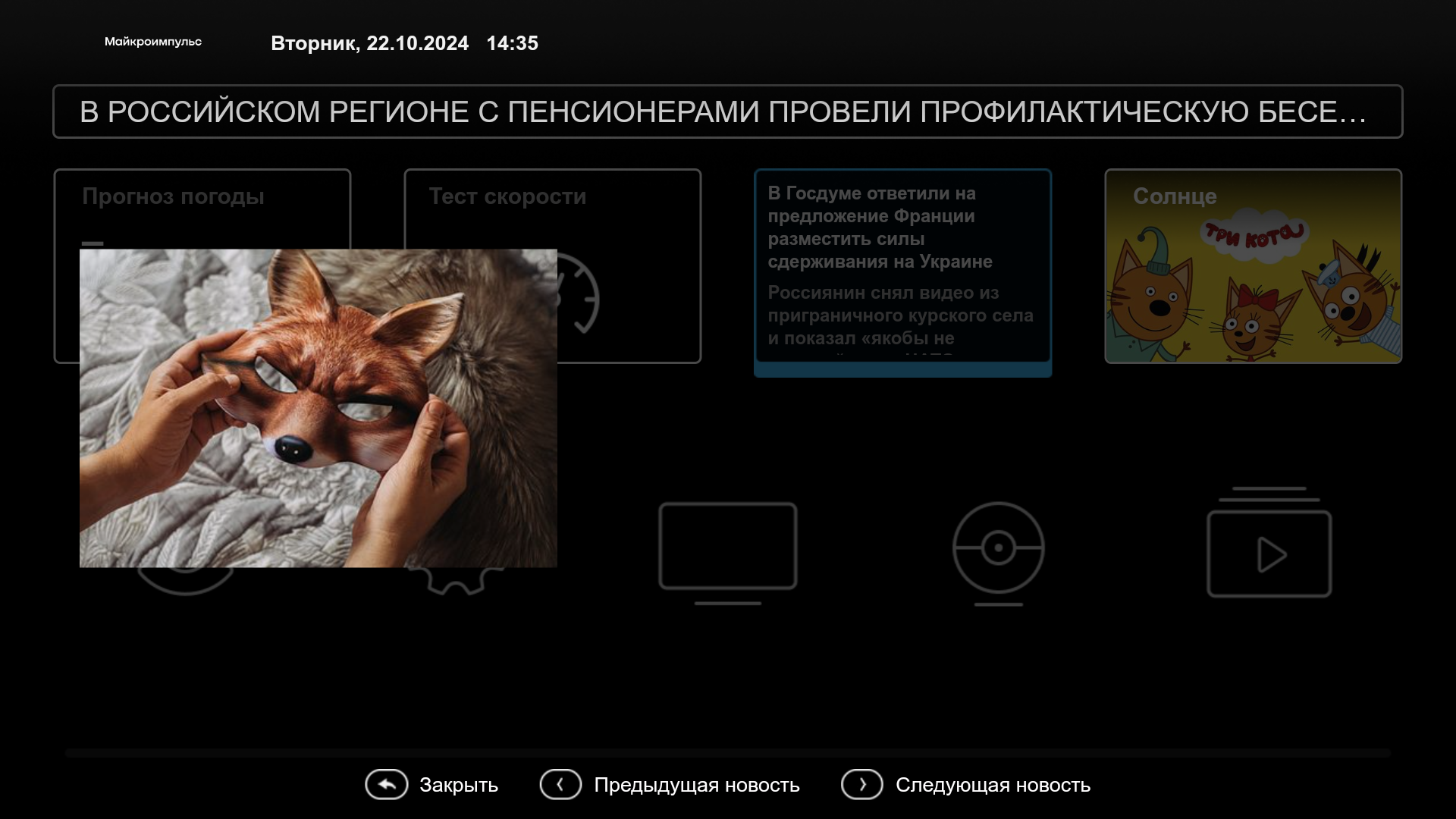
By clicking on any headline, you can get acquainted with the full text of the news. If desired, you can switch to the next or previous news without leaving this screen (buttons "Previous news" and "Next news"):
The widget configuration algorithm:
- Configure the Smarty Config file (optional):
TVMIDDLEWARE_RSS_WIDGET_CACHE_TIMEOUTtime in seconds for which it is necessary to cache the result of the RSS feed request;TVMIDDLEWARE_RSS_WIDGET_REQUEST_TIMEOUTtime in seconds during which a response from an external news service is expected;
Attention! More information about the parameters of the widget “News” can be found in the documentation section “Configuration and maintenance of Smarty” – “System parameters” – the block “Setting up widgets and external applications”. - If the Smarty configuration has changed, restart uwsgi to take effect;
- In the Smarty administration panel in the “App Directory” section, create a new application with fields:
Titleany
System name:Newswidget
TypeWidget
URL / Application name / ID:/templates/futuristic/default/apps/news-widget/news.widget.js - Prescribe the following parameter in the "Additional Attributes" block:
rss_url- RSS feed address
Widget "Payment by QR code"
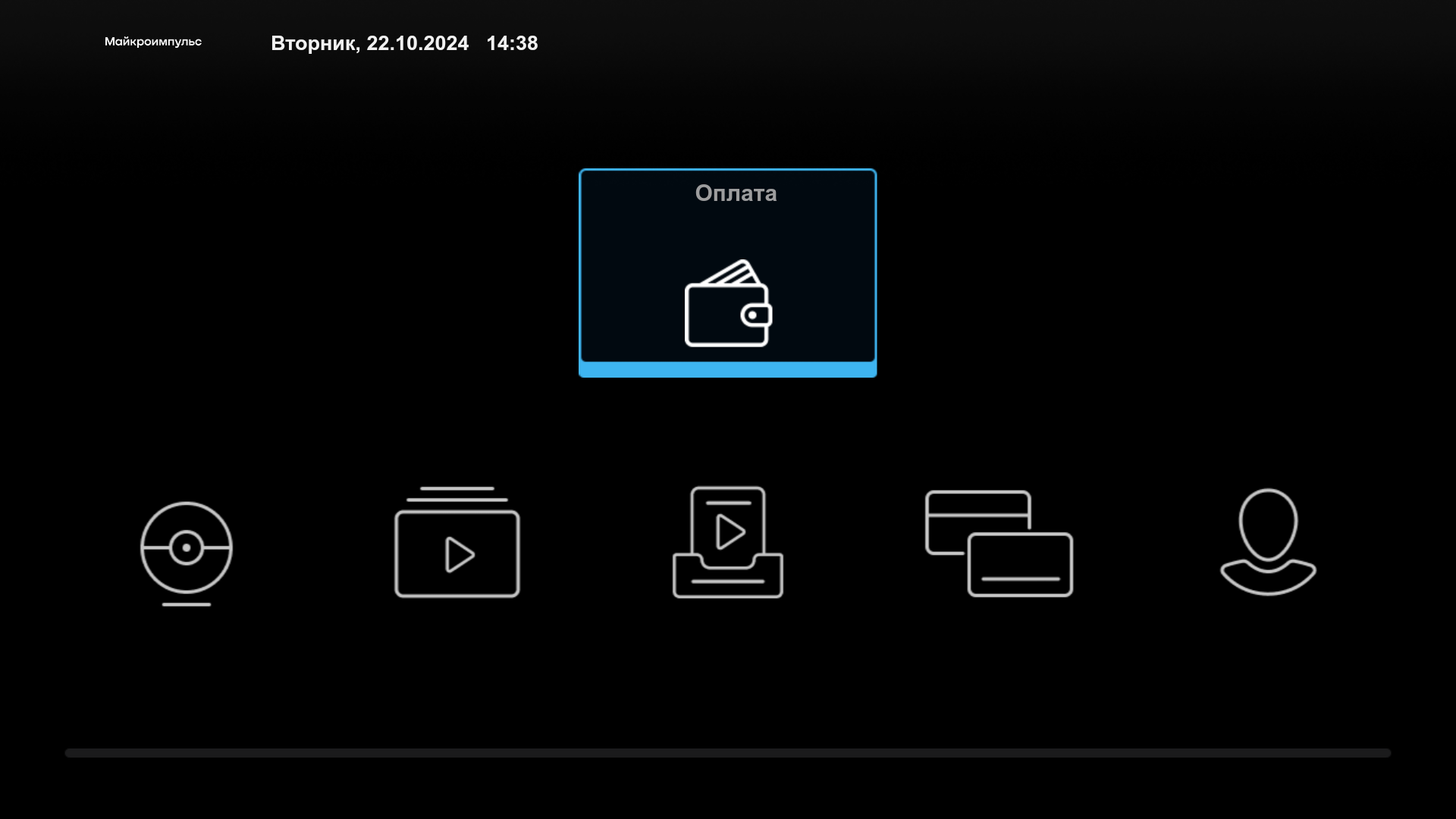
The QR Payment widget adds a payment button to the main screen of the portal. By pressing the button, a menu opens where you can choose the payment method:
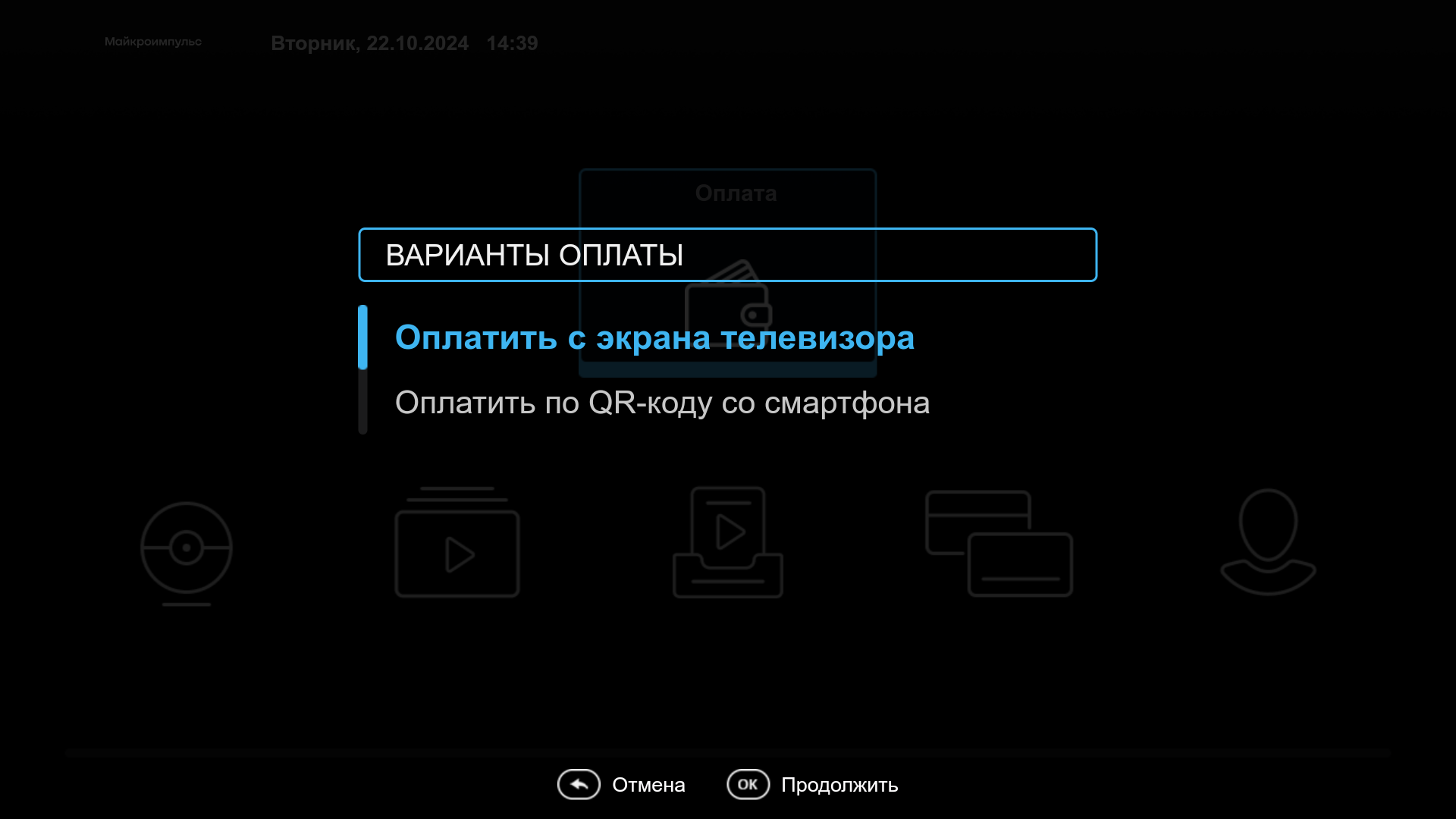
- Pay from the TV screen is a standard payment option, also available in the menu “My profile” – “Payment”. When you click on it, the form of the payment system specified in Smarty opens;
- Pay by QR code from a smartphone – the screen “Payment by QR code” opens, where the QR code will be formed:
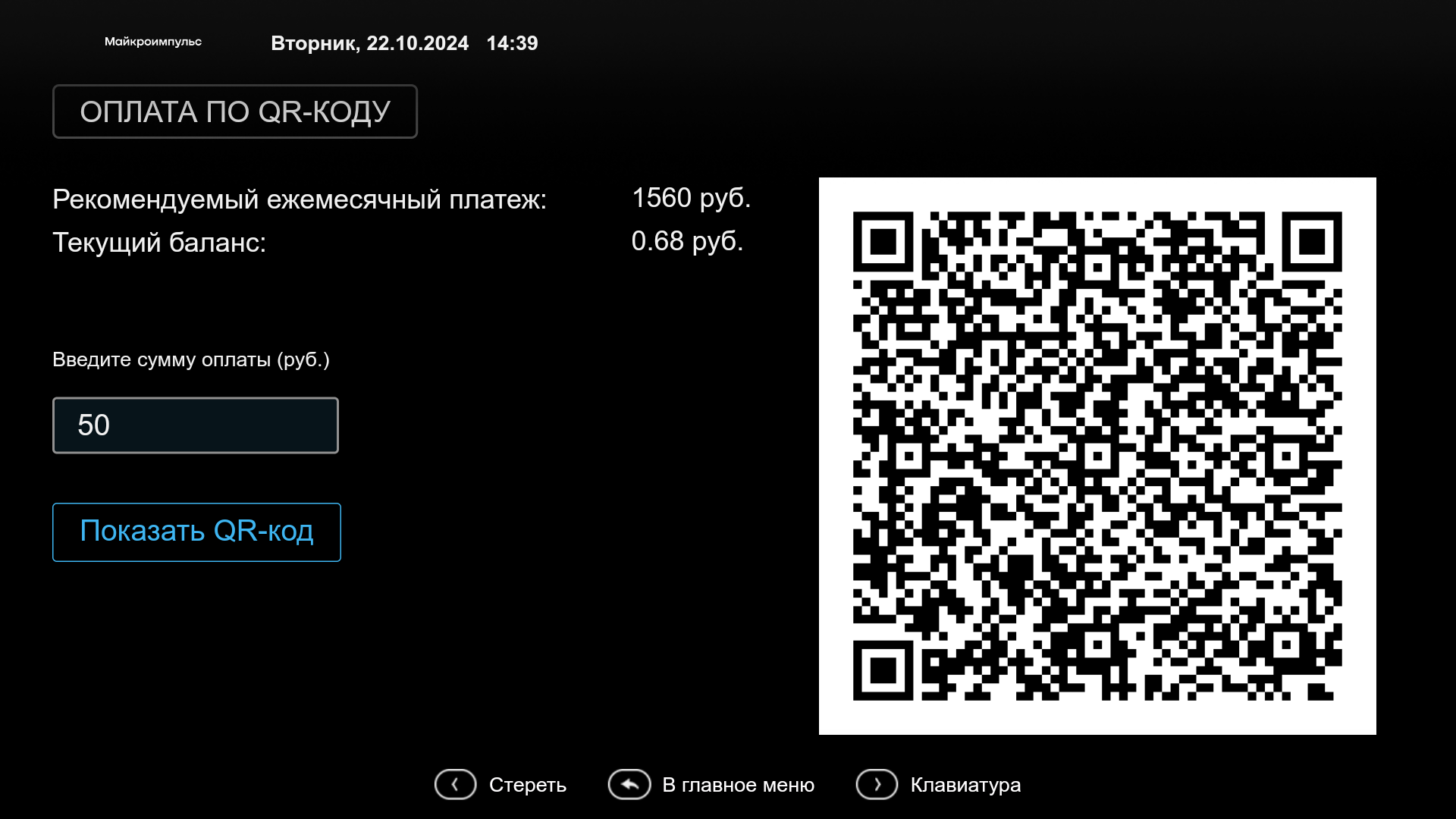
After entering the desired amount of payment in the input bar, on this screen you need to click on the “Show QR code” button. After this action, a QR code will appear on the right side of the screen, the scanning of which will transfer the mobile device to the form of the payment system.
The widget parameters:
Titleany
System name: PaymentWidget
TypeWidget
URL / Application name / ID: /templates/futuristic/default/apps/payment-widget/payment.widget.js
"Search" widget
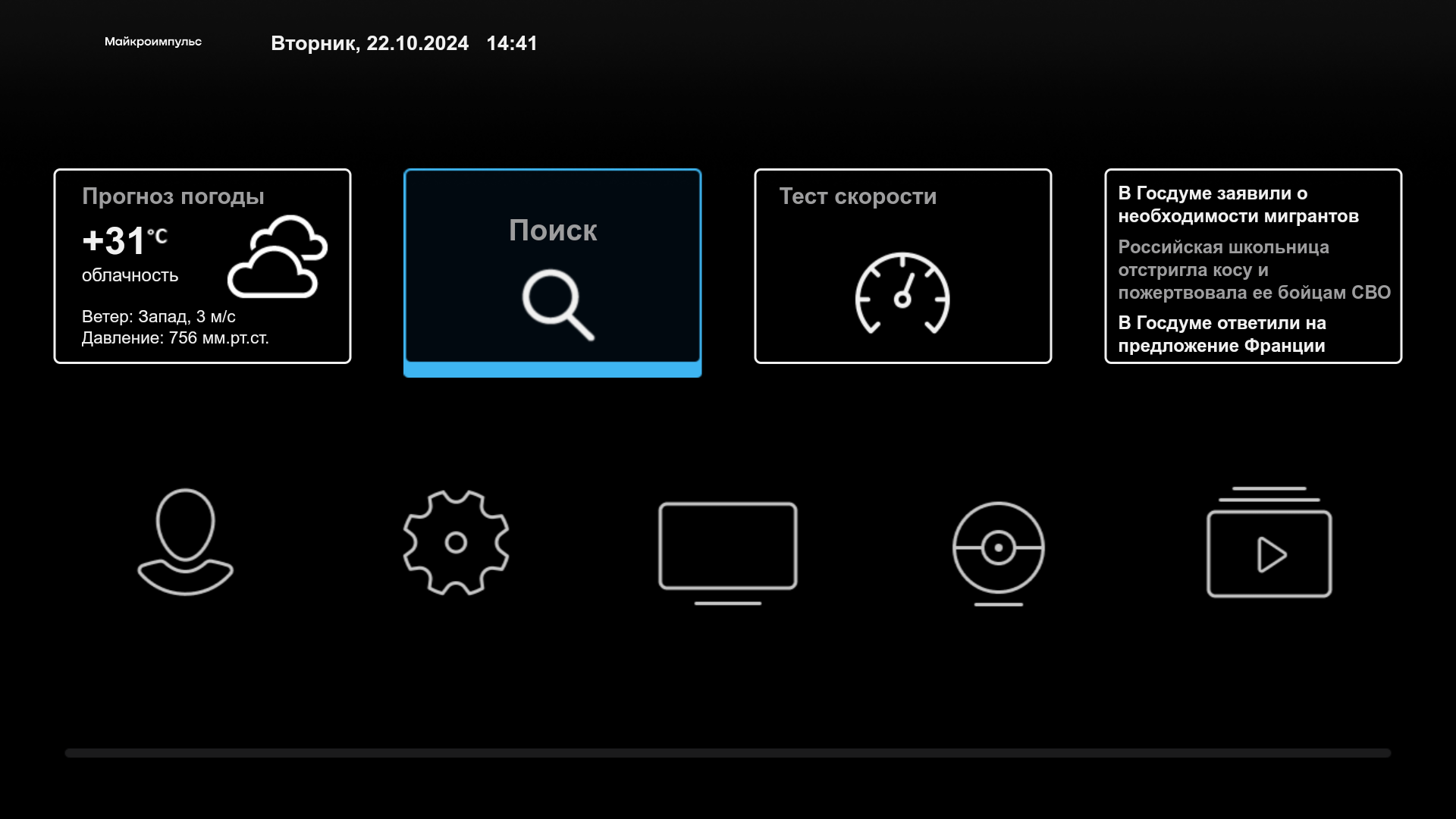
The “Search” widget adds a search button to the main template screen. This widget simplifies access to the search button - if you have this button, you can search for a channel / TV show / movie without opening the TV screen or the Video Library screen.
The widget parameters:
Titleany
System name: SearchWidget
TypeWidget
URL / Application name / ID: /templates/futuristic/default/apps/search-widget/search.widget.js
Banner widget

The Banner widget adds a button with an image, a link to which is indicated in the Additional Attributes block. By pressing the button, a banner appears on the screen, a link to which is also indicated in the widget settings.

The widget parameters:
Titleany
System name: PromoImageWidget
TypeWidget
URL / Application name / ID: /templates/futuristic/default/apps/promo-image-widget/promo.image.widget.js
Additional attributes of the widget:
image_url: a link to the widget image (this image will be displayed on the widget button in the main menu). The image should correspond to the size of the widget button (by default 258x168);big_image_url: a banner that will appear when you press the widget button. The image should correspond to the size of the portal screen (by default 1280x720).
Attention! This widget supports work only with the absolute type of links.
"Banner Link" widget
The “Banner Link” widget is similar to the “Banner” widget. The only difference is that instead of a banner that appears on the screen by clicking on the widget button, you will click on the link that will be specified in the “Additional attributes” block of the widget.
The widget parameters:
Titleany
System name: LinkImageWidget
TypeWidget
URL / Application name / ID: /templates/futuristic/default/apps/link-image-widget/link.image.widget.js
Additional attributes of the widget:
image_url: a link to the widget image (this image will be displayed on the widget button in the main menu). The image should correspond to the size of the widget button (by default 258x168);link_url: the address of the link that will open by clicking on the widget button.
Attention! This widget supports work only with the absolute type of links.
"TV Premiere" widget
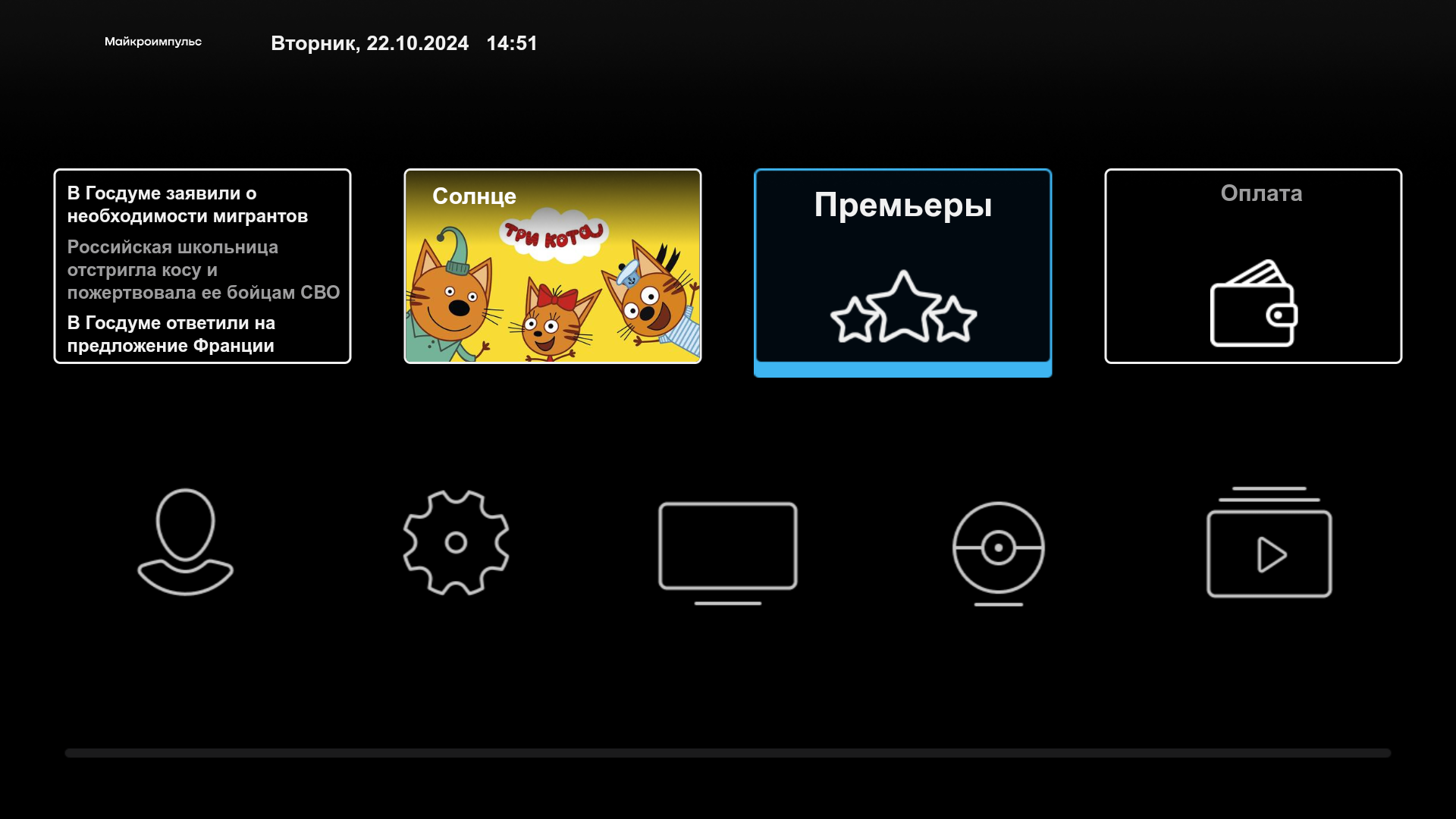
This widget provides access to the list of TV premieres. By clicking on the widget, a list of current TV premieres opens.
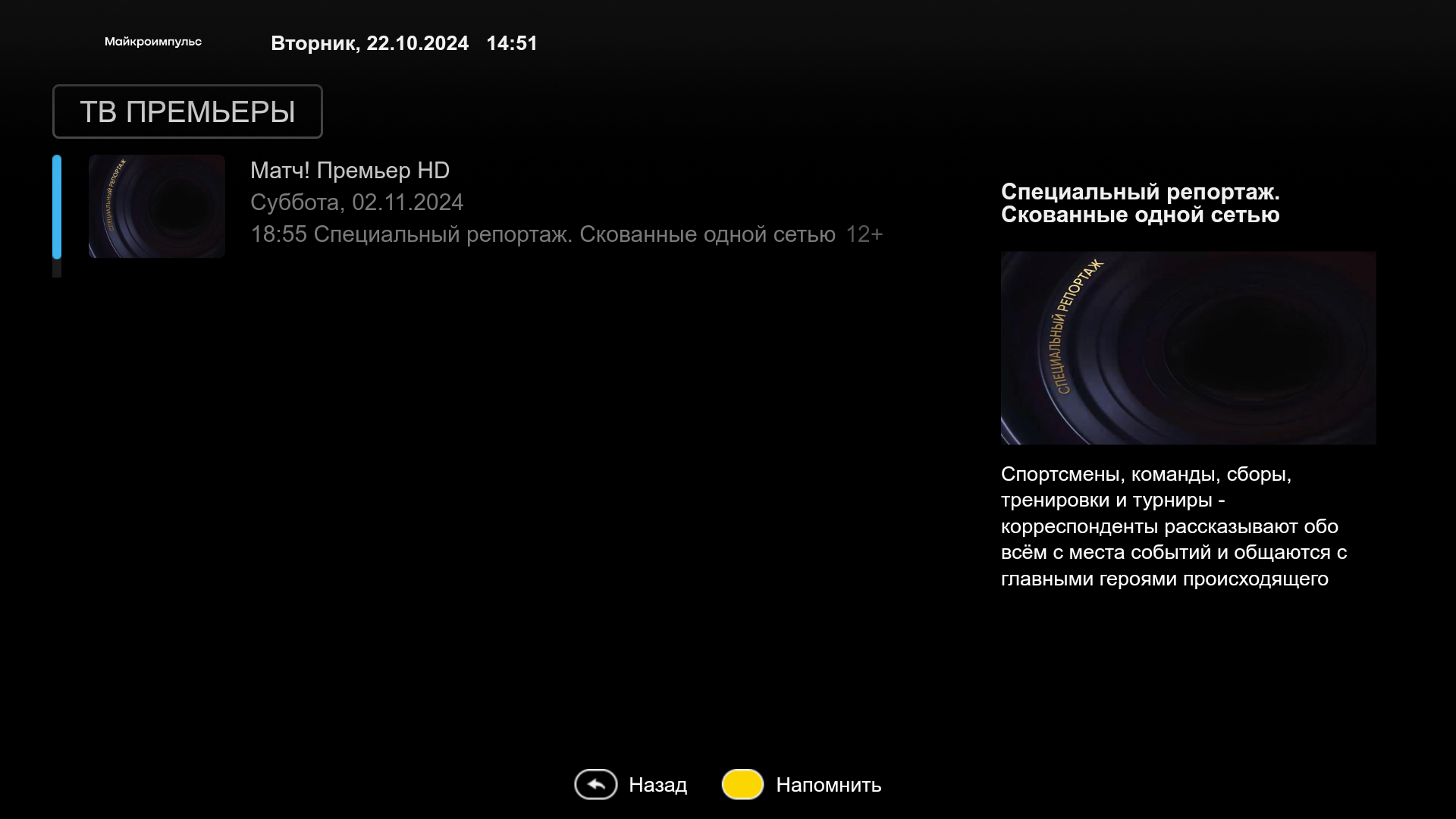
Attention! In order for the list to be not empty, TV premieres should be available in Smarty.
The widget parameters:
Title: any (will be displayed as the widget name in the portal)
System name: PremieresWidget
TypeWidget
URL / Application name / ID: /templates/futuristic/default/apps/premieres-widget/premieres.widget.js
Channel Promo widget
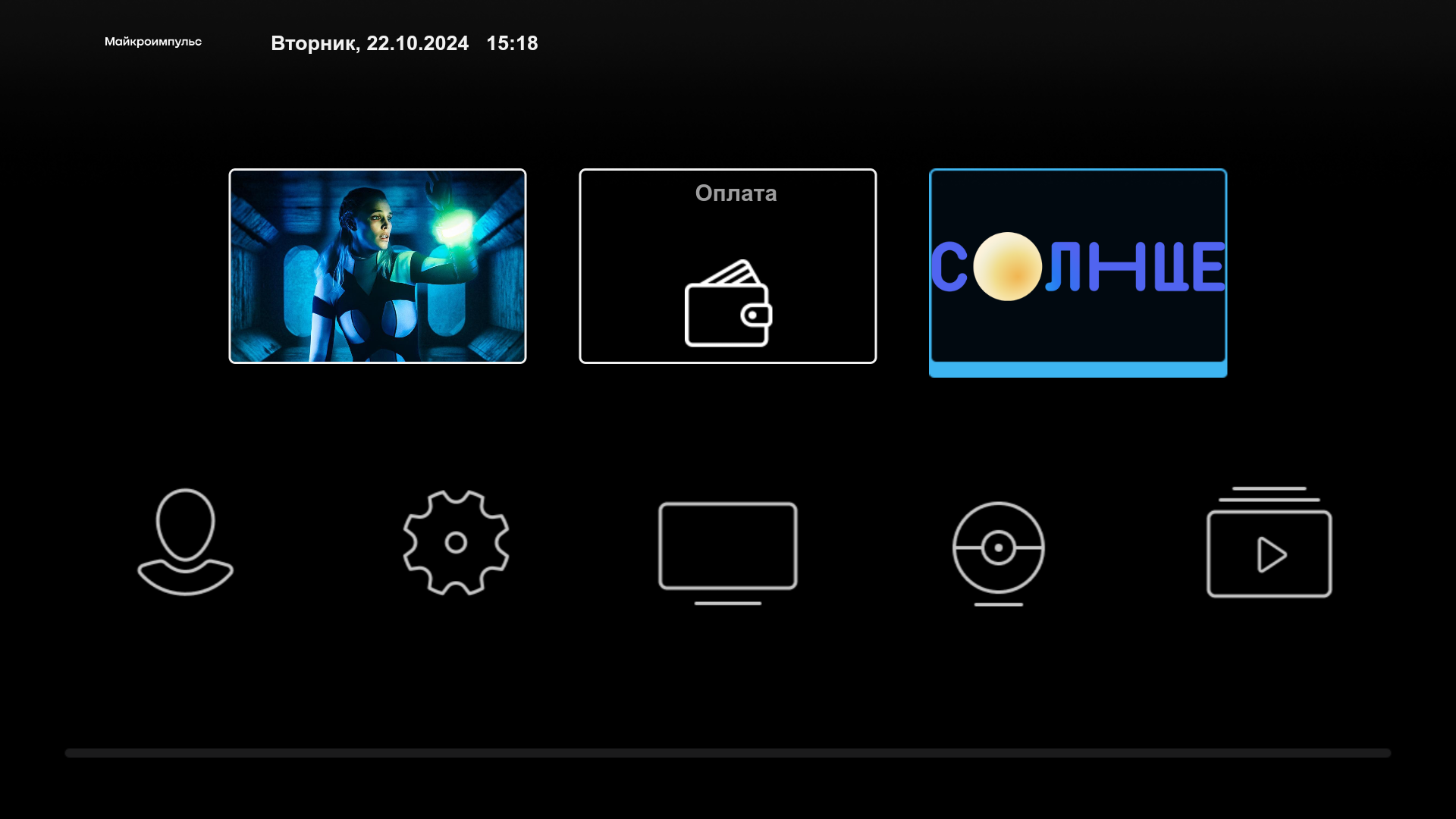
The Promo Channel widget adds a button to the main screen, at the click of which the channel trailer will be played. This widget can be used as an announcement of a new channel available by subscription.
The widget parameters:
Titleany
System name: PromoStreamWidget
TypeWidget
URL / Application name / ID: /templates/futuristic/default/apps/promo-stream-widget/promo.stream.widget.js
Additional attributes of the widget:
items_____preview_url: a link to the widget image (this image will be displayed on the widget button in the main menu). The image should correspond to the size of the widget button (by default 258x168);items______trailer_url: a link to the thread that will start when you press the widget button.
Attention! This widget supports work only with the absolute type of links.
Movie Promo widget
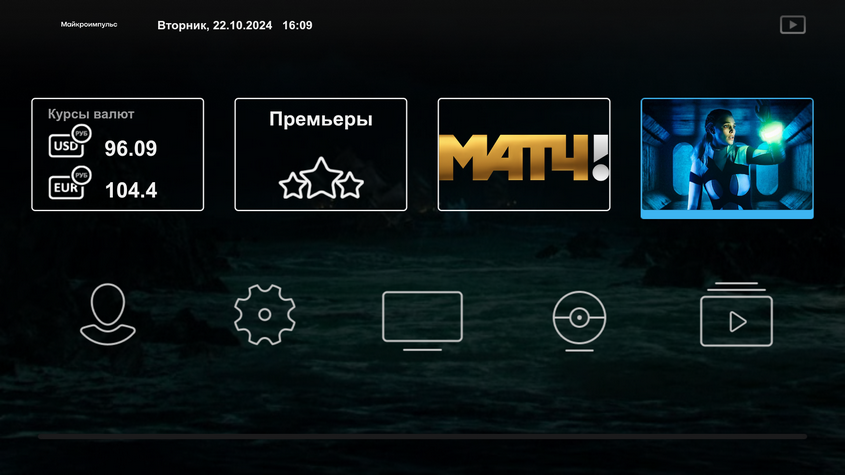
The promo widget of the film adds a button with a preview image of the film to the main screen. When you click on this widget, the movie trailer is played. If at the time of viewing the trailer to press the button “OK” (or Enter) again, then the transition to the description of the film.

The widget parameters:
Titleany
System name: PromoVodWidget
TypeWidget
URL / Application name / ID: /templates/futuristic/default/apps/promo-vod-widget/promo.vod.widget.js
Additional attributes of the widget:
items__NUM__id: film ID in Smarty;items__NUM__trailer_url: a link to the stream that will start when you press the widget button;items__NUM__preview_url: a link to the preview image that will appear on the widget button. The image should correspond to the size of the widget button (by default 258x168);NUMthe number of the object that will be displayed in the portal (numbering is in order, starting from 0). Example: 0.1,2,3.....15).- timer – number of seconds for movie rotation
Within this widget, you can add several objects (trailers). In this case, their rotation will occur once an hour (i.e., during the first hour the first trailer will be displayed, the next hour the second trailer, and so on).
Attention! In order to open a window with the description of the film when watching the trailer by clicking the “OK” button, it is necessary that the subscriber has access to this content (either by using the “Access to Content” tariff or using the “Display Content without the possibility of launching” tariff). Otherwise, the customer will get an error.
Sibseti
Widget "Speed Test"
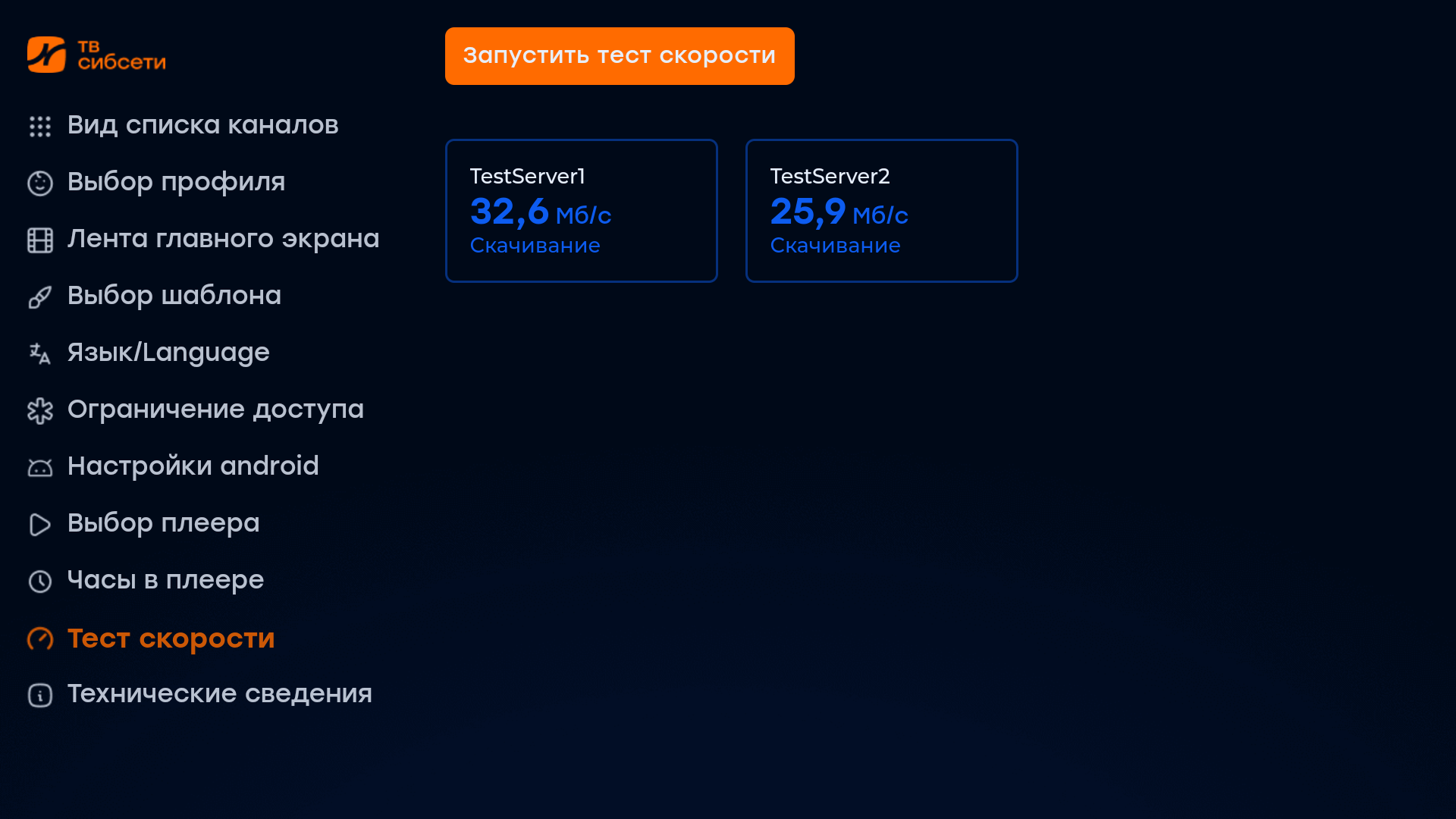
The speed measurement is based on image download data from a remote server, so the configuration algorithm for this widget includes the following steps:
- On all servers to which you need to measure the speed, you need to put this data picture.
- In the Smarty administration panel in the “App Directory” section, create a new application with fields:
Title: any, it will be displayed in the interface
System name:SpeedTestWidget
TypeWidget
URL / Application name / ID:you can skip filling this field because Sibseti ignores it - For each server in the "Additional Attributes" block, you need to specify the following parameters:
server____________: server name for display in the template;server__0__url: адрес до картинки на этом сервере, например: http://example.com/microimpuls.png (мы подобрали оптимальный размер изображения для измерения скорости);server__0____ize: the size of the picture in bytes, for the picture we provide is 16115141.
Note: within this widget you can specify several different servers. To do this, you need to consistently specify the parameters of each server, as in the screenshot below:
To display the widget in the mobile application, you need to add an option show meaningfully true on the “STB and Application Settings” page in the “Portal and Application Configuration” section.
Widget "Web-application in the external window"
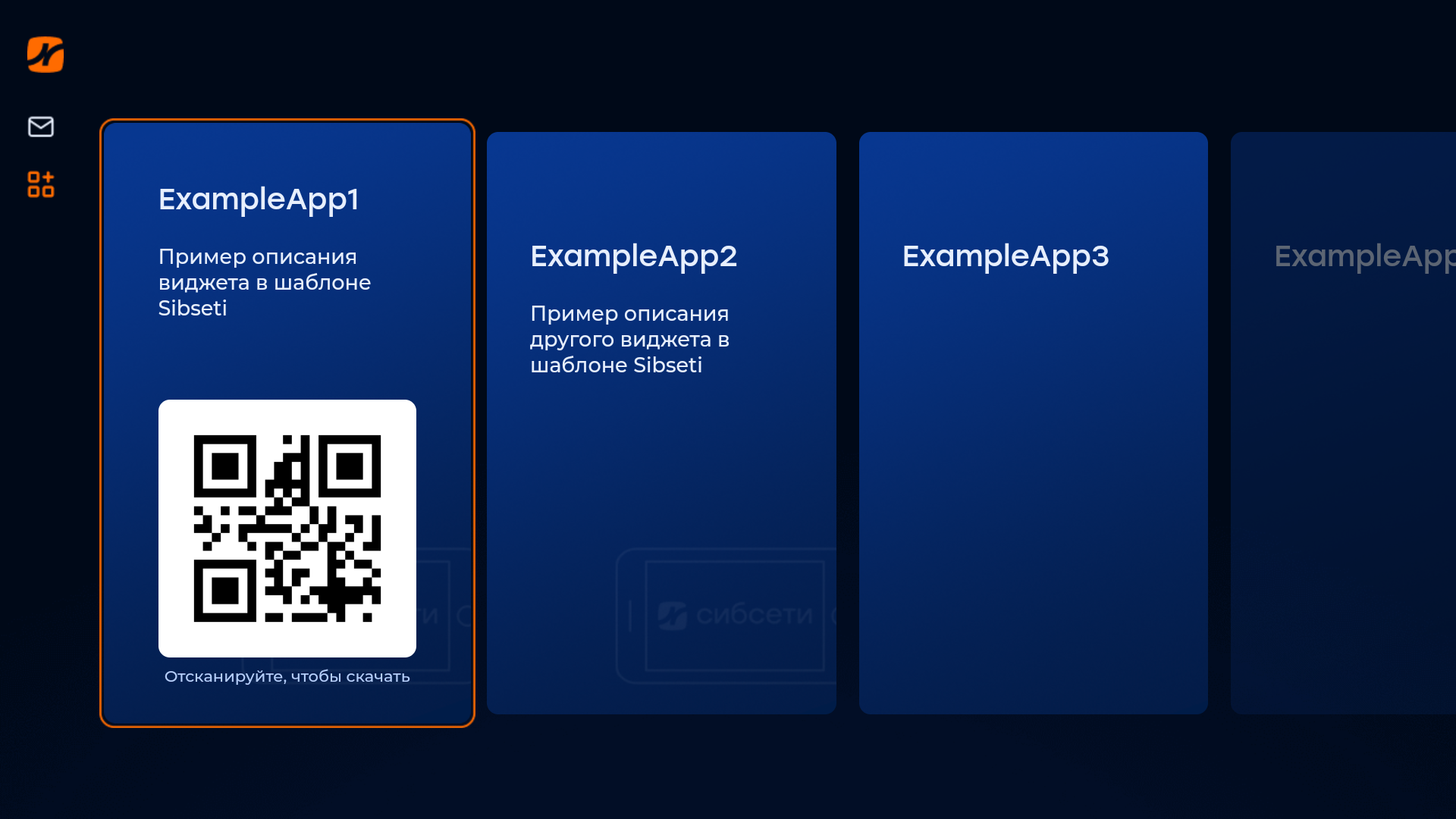
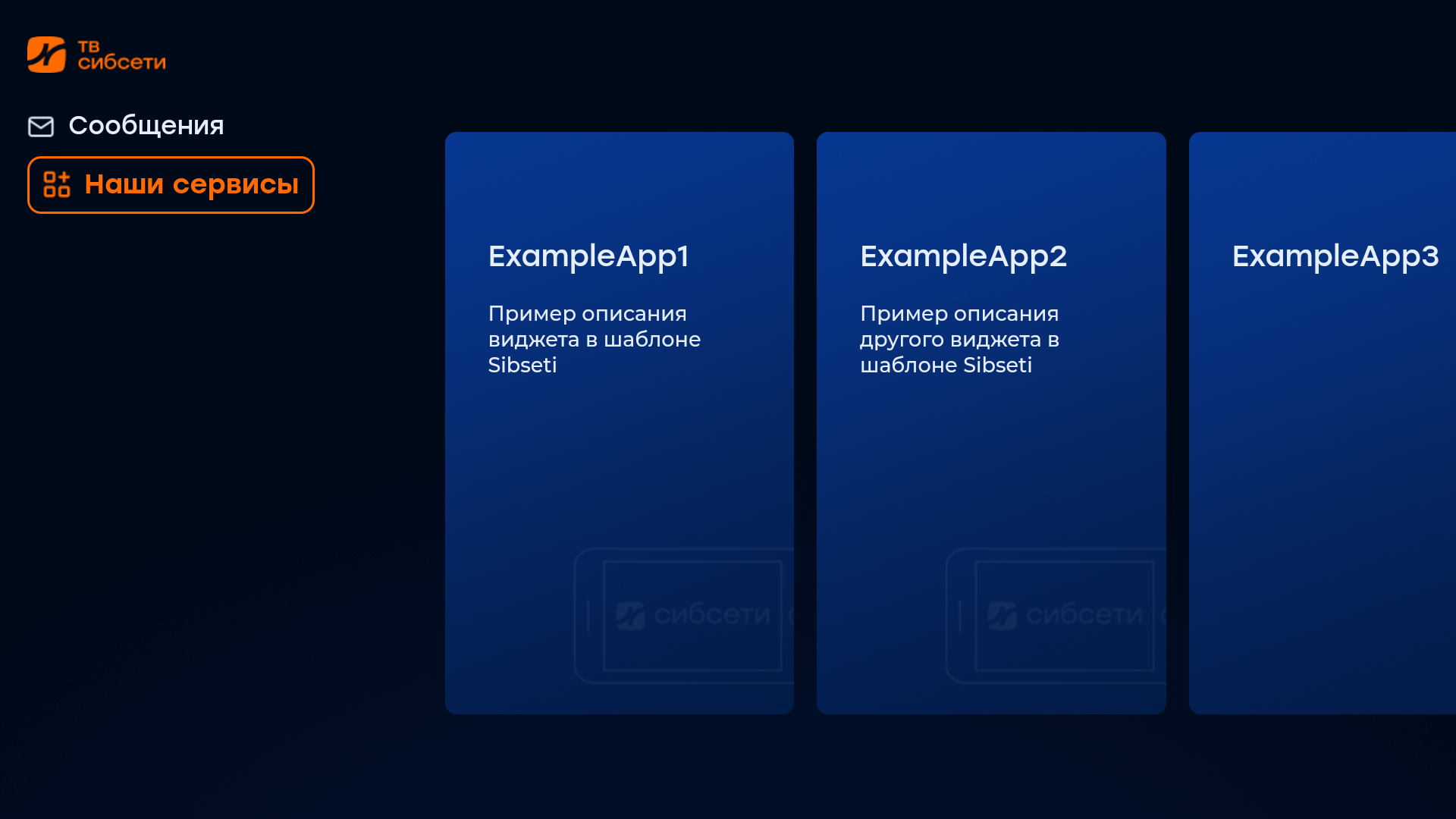
This widget is located in the "Our Services" section of the "My Profile" screen. It opens the specified URL in the browser of the device.
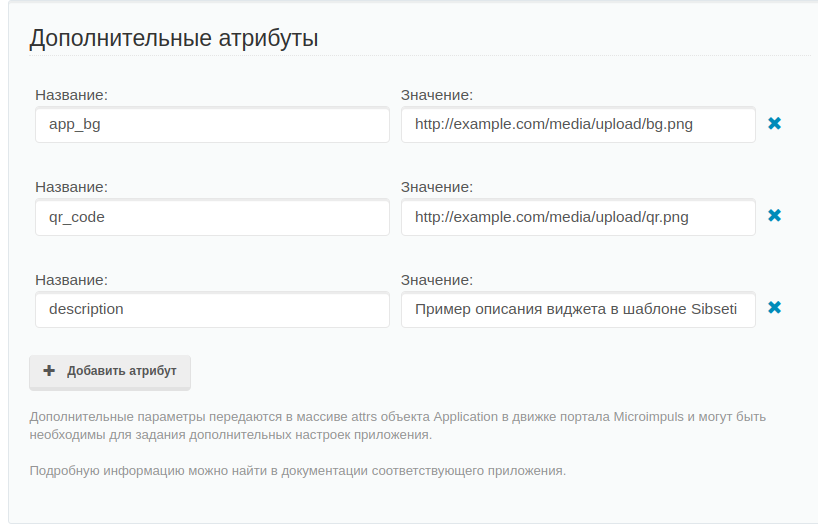
When setting up, the following additional parameters can be specified:
app_bg: allows you to change the background image of the widget. Accepts a link with a picture with a resolution of 307×512;qr_code: accepts a link to an image with a QR code, which will be displayed when focusing on it;description: description of the widget (will be displayed under the title).
Note: not all devices support a return to the parent app (from which the transition was made).
