Brief instruction
To make the film available for viewing in the portal, you need to perform the following minimum algorithm of actions:
Open the screen "Content Settings" - "Films";
Press the button "To create." and specify the following parameters:
- Indicate the title of the film in the field "Title" this name will be displayed in the portal;
- Download a poster for the film (otherwise the film in the portal will be displayed incorrectly);
- Specify the genre/genre category of the film;
- Specify the tariff plan within which this film will be available (given the type of tariff plan – if a tariff plan with the type “display content in the list without the possibility of launching” is specified, then the film will not be available for viewing);
- Specify the price category (price categories are created in the section) "Billing" - "Price category"). In order for the film to be available by subscription to the tariff, you need to specify the price category of the "Free" type;
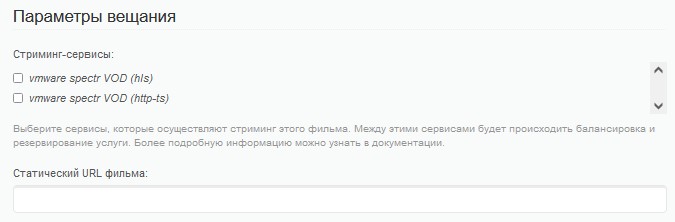
- Specify the streaming services within which this film will be available
or
Specify the static URL of the film (the server address along with the path to the folder where the film file is stored); - Go to the Assets section and press the button "To create.";
- Specify the name of the asset in the field "Name";
- Specify the name of the video file in the field "File Name", which must be stored on the streaming server (or must be available within the URL specified in paragraph 6).
- If you plan to add a series, then, after fulfilling paragraph 6, you must set a tick "Is a series" section "Group parameters"assets will need to create several assets, each of which will correspond to the series.
After that, the film/series will be available for viewing. However, the above algorithm does not cover all available options and possibilities for adding a movie. Also, there is no information on how to add the series. Below is a more detailed list of movie parameters available in Smarty:
Basic information block
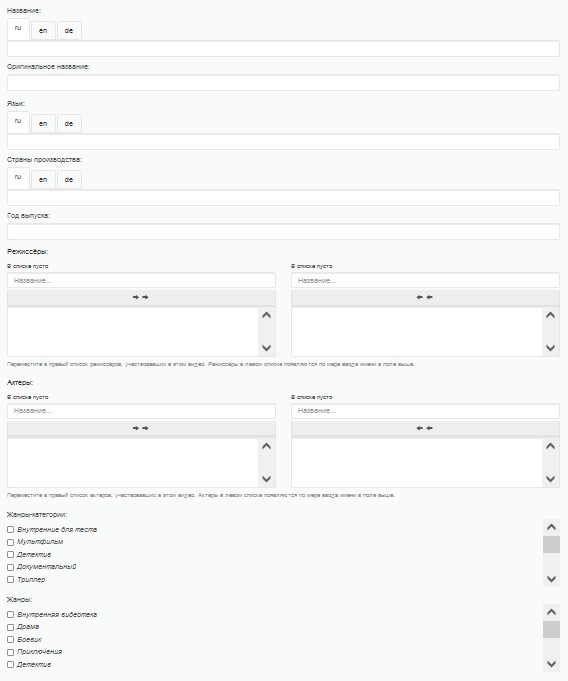
Title This is the name of the film. It will be displayed in the portal.
Original - the original title of the film. Can be used for display in the portal (depending on the template).
Language an informative field that can be displayed in the portal information about the language in which the film is provided (depending on the template).
Countries of production a list of countries within which the film was filmed. Informative field, which can be displayed in the portal (depending on the template).
Year of release The year the film was released. Informative field, which can be displayed in the portal (depending on the template).
Director A field to indicate the name and surname of the director. It can be displayed in the portal (depending on the template).
Actors List of actors involved in the film. You can only list actors who are already in Smarty.
Genre categories/genres determines the affiliation of the film to the genre-category/genre of the film. Genres are created on the Smarty screen “Content Settings” – “Generes and VOD categories”. When editing an existing or creating a new genre, the genre becomes a genre category if the appropriate tick is displayed (“is a category”). This movie setting can be used to group content using the option filter_videos_by_genres. In Smarty (as well as some templates), it can be used as an additional content filtering option.
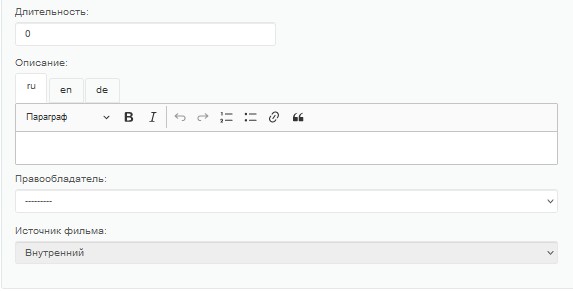
Duration Here you can specify the total duration of the film / series. Informative field, which can be displayed in the portal (depending on the template).
Description - film description. It can be displayed in the portal (depending on the template).
Rightholder - You can specify the copyright holder of the film. The copyright holder and his data can be created on the screen “Content Settings” – “Rightholders”.
Source of the film This parameter is set automatically. 2 values can be displayed:
- Internal if the film is downloaded manually;
- From an external provider The film was imported from an external cinema (START, PREMIER).
Movie ID on film search/tmdb/cinemate Here you can specify the corresponding id of the film. After clicking the "Download Data" button, the film data will be imported, namely:
- Title of the film;
- Film rating on rating aggregators (Kinopoisk and IMDB);
- Poster;
- Country of production;
- Year of issue;
- Director;
- List of actors (if there are no actors in Smarty, they will be added to the corresponding section automatically);
- Genre (or genres) of the film;
- Duration of the film;
- Description of the film;
- Age rating.
Rating on Film Search/IMDB In these fields, you can specify the rating of the film from rating aggregators (Kinopoisk and IMDB). This information can be displayed in the portal (depending on the template).
Poster In this field you can download a poster for the film. This poster will be displayed in the portal.
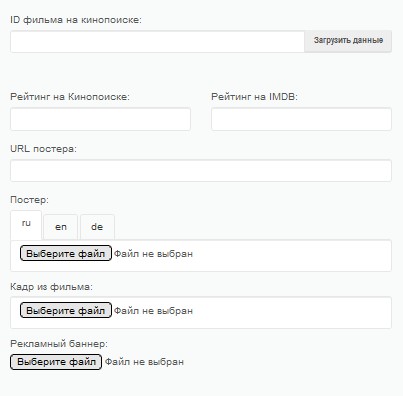
Screenshot from the film/Advertising banner In these fields you can download a frame from the film and an advertising banner. This data can be used in the portal (depending on the template).
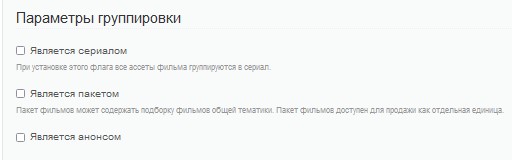
Block "Group parameters"
Tick "Is a TV Series" if you plan to download the series, and not a full-length film, you need to set this tick.
Check "Is a Package" With the help of this item, you can combine several films into one film package. Thanks to this option, you can combine several parts of the film into one.
Tick "is an announcement" - can be used in the portal for the announcement of the film / series.
Availability parameters block
Tariff packages Determine the availability of the film. If the user has the corresponding package connected, the film will be displayed in the portal.
Price category Determine the availability of the film and its cost. In Smarty, there are 4 types of price categories:
- Freely the film will be available immediately after connecting the relevant tariff plan;
- Purchase the film will be available after a one-time purchase of the film;
- Rentals the film will be available for a certain period of time (days) from the date of payment of the lease;
- Subscription Created only for external theaters added through API integration. According to the principle of operation corresponds to the “Free” type, with the only difference that this type of price category is assigned to a certain tariff plan (related to the cinema integrated through the API).
Price categories can be created manually in the section "Billing" - "Price categories".

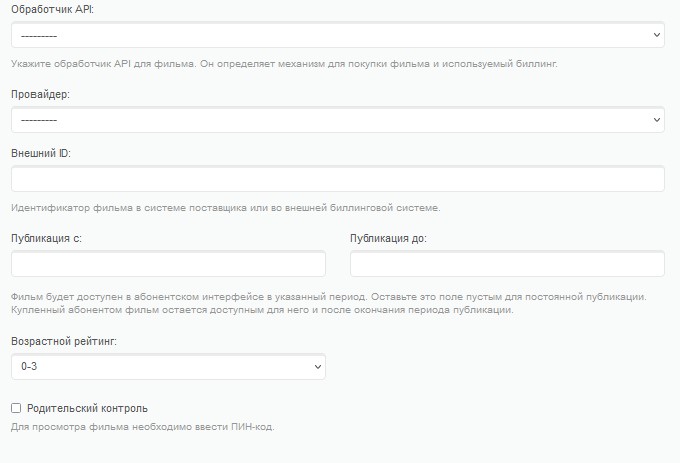
API handler The API handler determines the billing used for the film, as well as the mechanism for purchasing the film. For films imported from external cinemas, this parameter is determined automatically.
Provider With the help of this parameter, you can determine the belonging of this film to the provider / cinema. For imported from external sources, this parameter is determined automatically.
External ID - Movie identifier in the supplier system or external billing system. This option is necessary if the film is associated with API integration.
Publication c/do With the help of this parameter, you can schedule the date of publication of the film. Restrict access to the film until a specific date.
Age rating - the movie's age rating. This parameter can be used for age profiles of the portal.
Checkmark "parental control" if there is a tick, the film will be available for viewing only by pin code.
Broadcasting parameters
Streaming services with the help of this parameter, you can specify within which streaming service this film will be available.
Static Movie URL - An analogue of a streaming service. Instead of dynamic routing (according to the terms of the streaming services), the film will be broadcast only to the specified address.
Film Assets screen
This screen contains information about all the assets of the film, namely:
- Asset ID
- Name of Assets
- Asset sorting
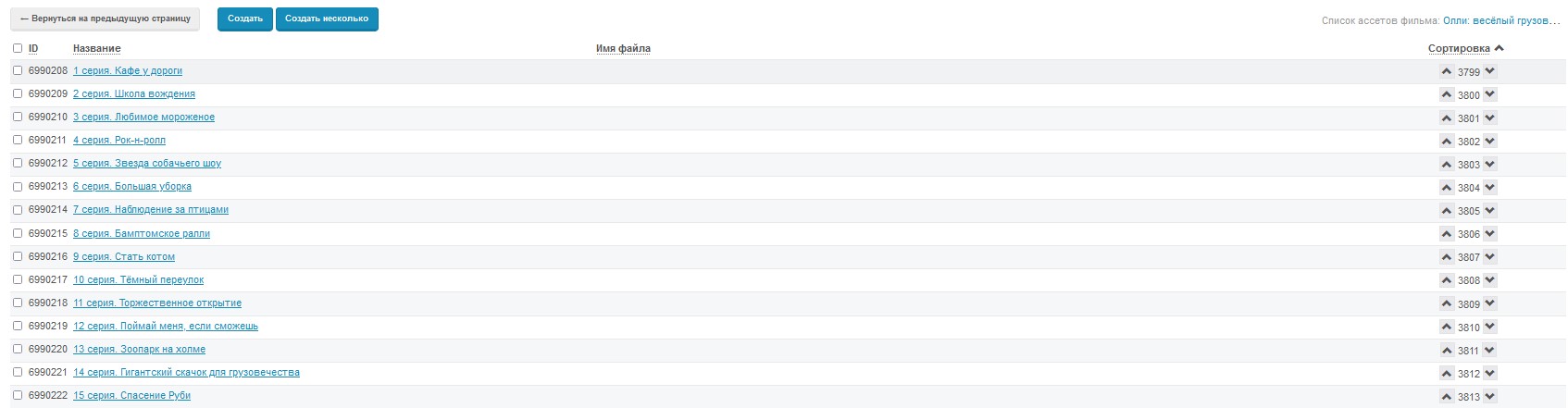
Also, on this screen it is possible to create new assets of films. Asset creation/editing functionality is presented below:
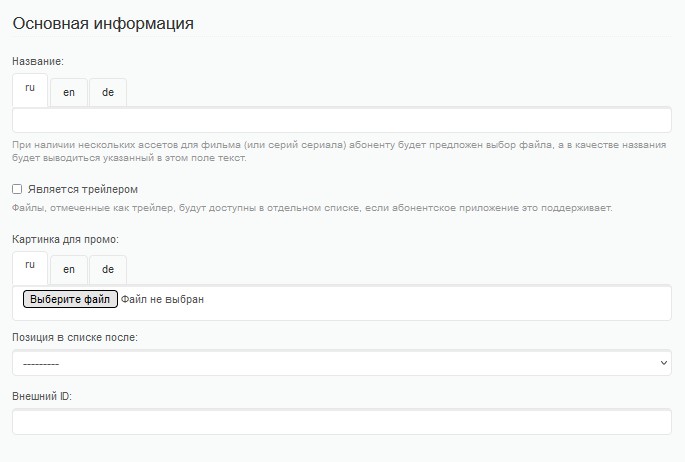
Basic Information Asset Block
Title - The title of the film/series.
Check "is a trailer" if the asset has this tick, it means that this asset will be used in the portal as a trailer for the film.
Promo picture - Asset image. It can be used in the portal.
Position on the list after - parameter for sorting assets. Allows you to add an asset to the sort immediately when creating an asset.
External ID If the film asset is associated with an external API, you can specify its ID here.
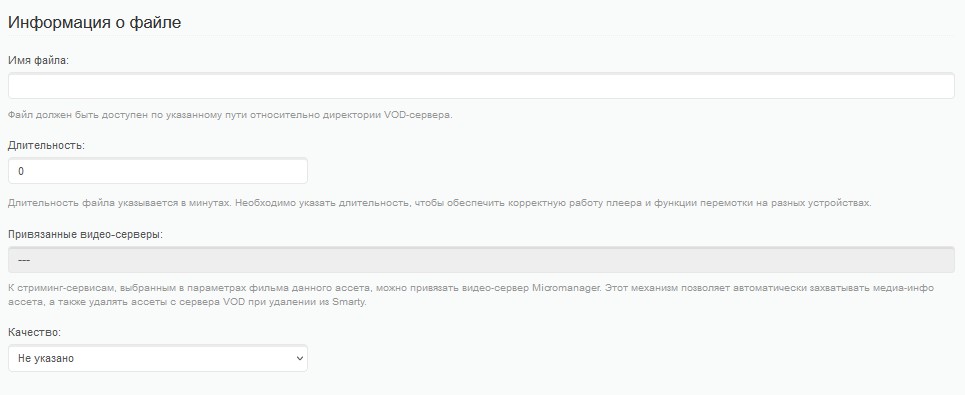
Asset block "File Information"
File name - The name of the file on the streaming server.
Duration - the duration of the film asset. This parameter is necessary to correctly display the duration of the asset on the portal.
Linked video servers - is determined automatically based on the specified parameters of the film broadcasting.
Quality - Asset quality. You can create several identical assets with different quality (movie resolution).
"Series" screen
Functional, relevant to the series. With this screen, you can break down assets by series. Also, information about the series is stored here, namely:
- Title of the series;
- Belonging to the season;
- Duration of series;
- Series sorting.

The series creation/editing functionality is described below:
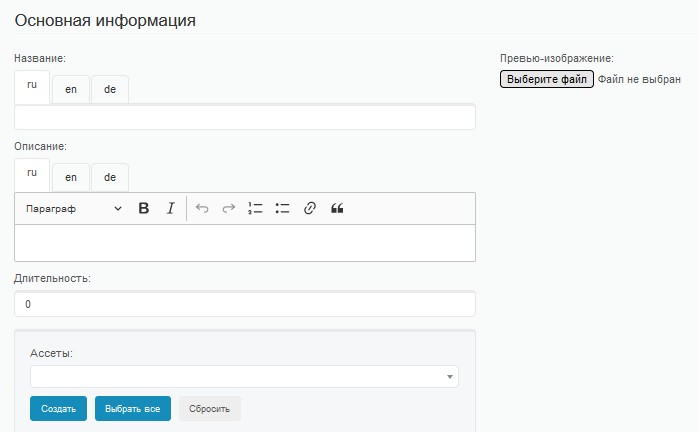
Basic information series block
Title - the title of the series.
Description - description of the series. It can be used in the portal.
Duration - Duration of the series.
Assets - This menu allows you to link the Asset (or several Assets) to this series.
Preview image - preview image of the series. It can be used in the portal.
The Seasons screen
Functional, relevant to the series. If the series has several seasons, then with the help of this screen you can divide the series by seasons.

The season creation/editing functionality is described below:
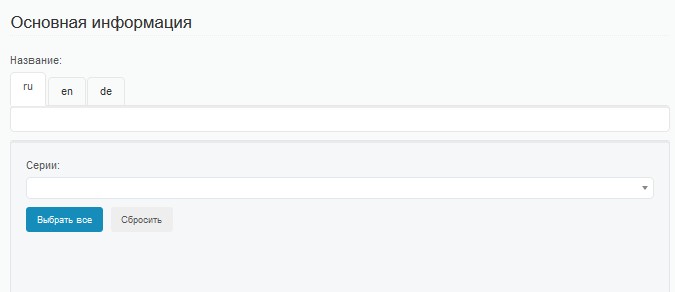
Basic Information Season Block
Title - season name.
Series - a list of episodes tied to this season of the series.
Buying movies
How to set up a TVOD movie worth 100 rubles
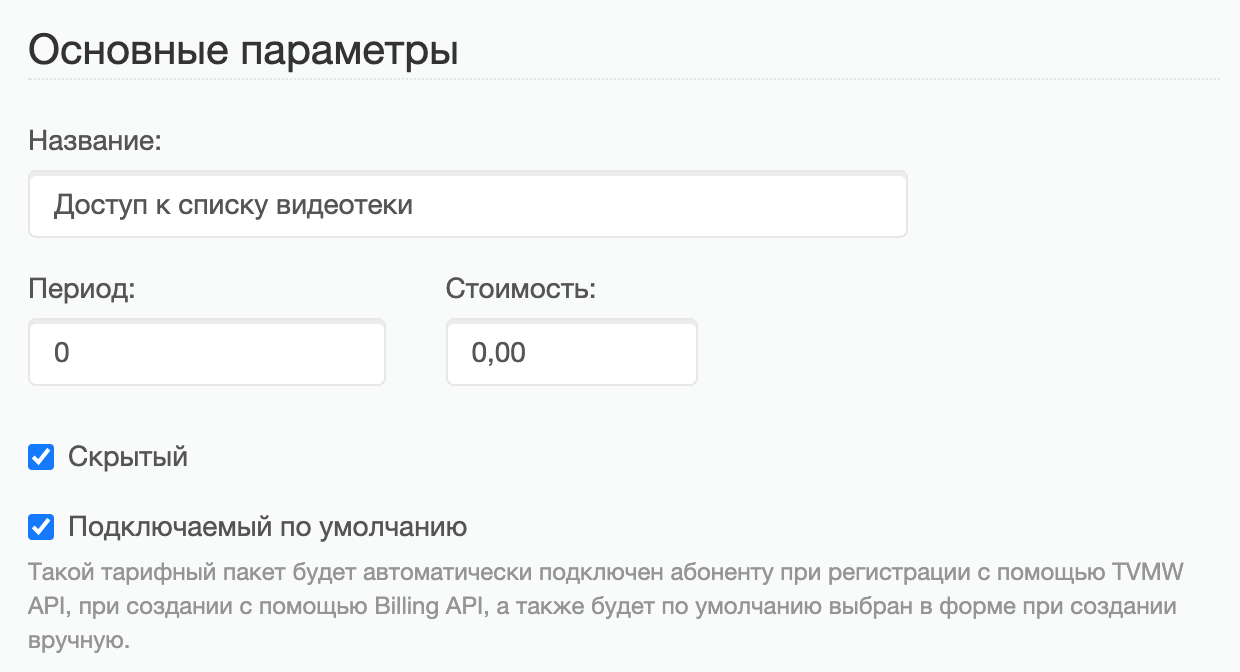
- Create a tariff package "Access to the list of video library" (Billing → Tariff packages) with the following settings:
- Hidden
- Default-connected
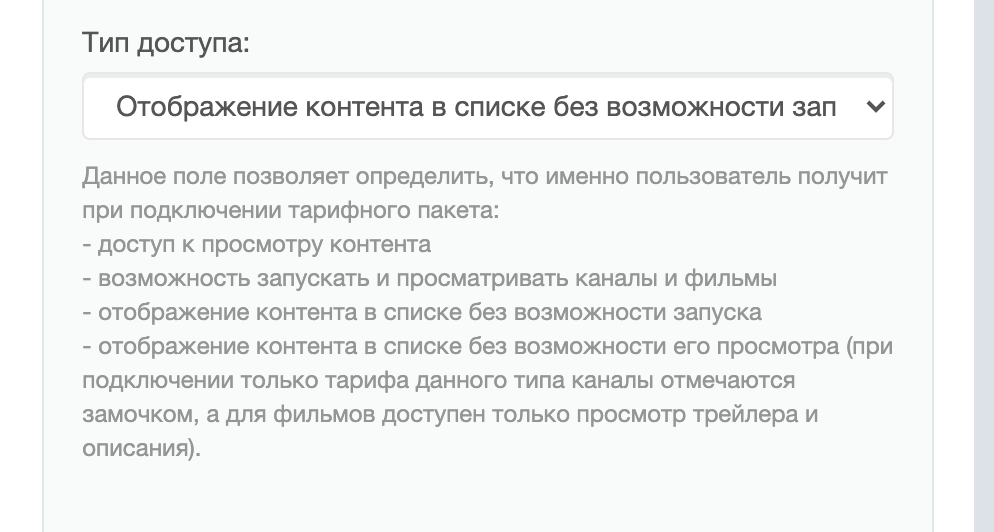
- Access Type “Displaying Content in the List Without Launchability”
- Cost: 0
- Availability parameters: included
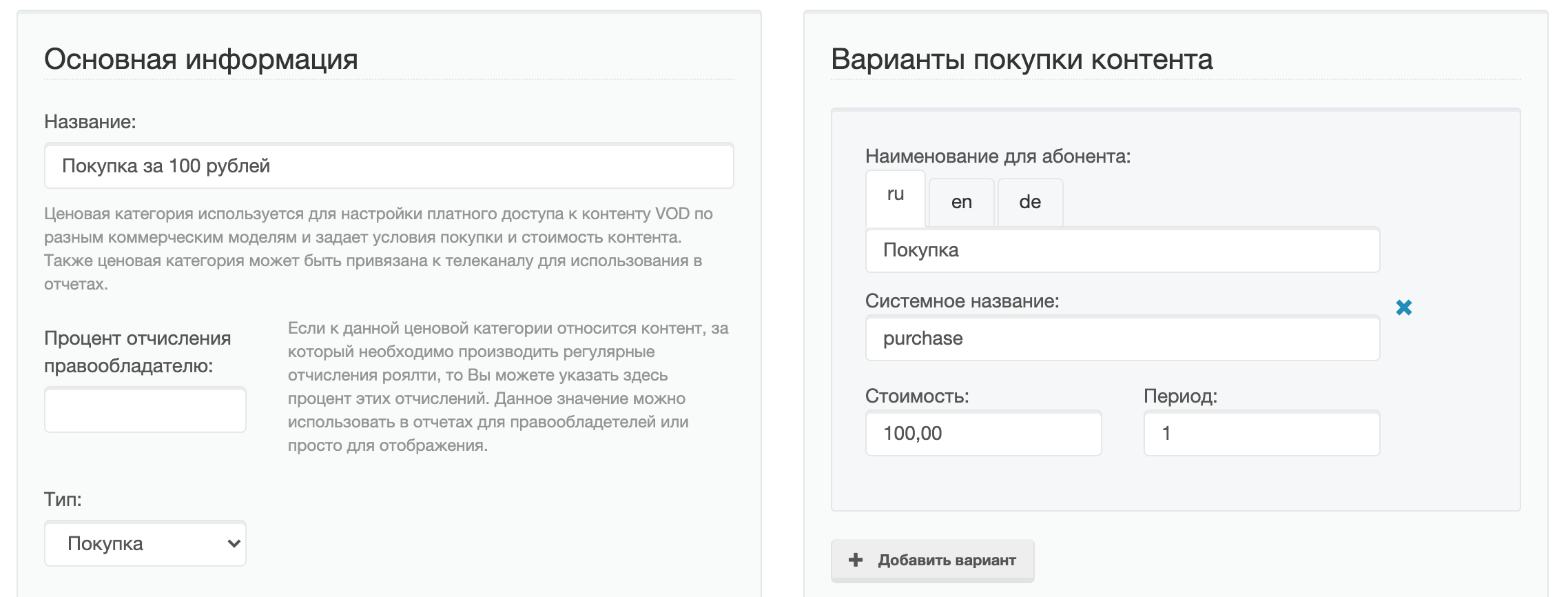
2. Create a price category "Buy for 100 rubles" (Billing → Price categories) with the following settings:
- Type: Purchase
- Name for the subscriber: "Purchase" (+ localization in different languages, if necessary)
- System name (the Latin identifier must be unique)
- Cost of purchase
- Period (in days)
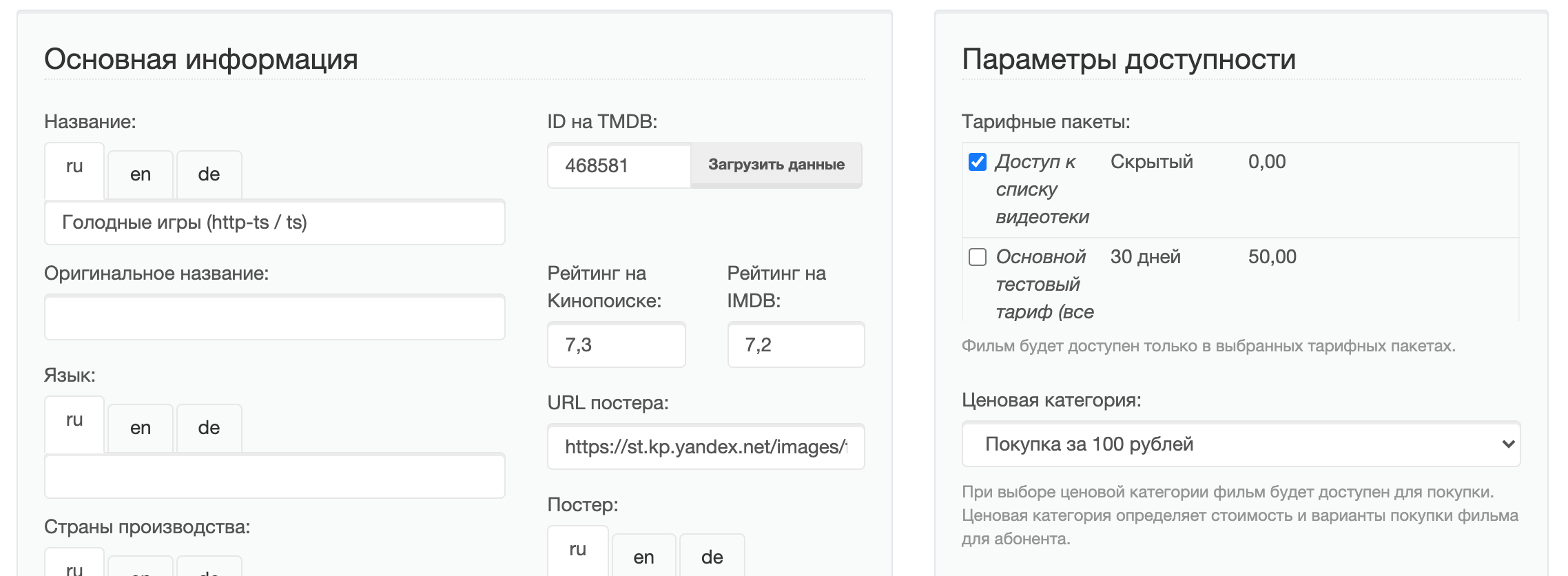
3. Create a movie with the following settings for purchase:
- Tariff Packages: Access to Video Library List
- Price category: Purchase for 100 rubles
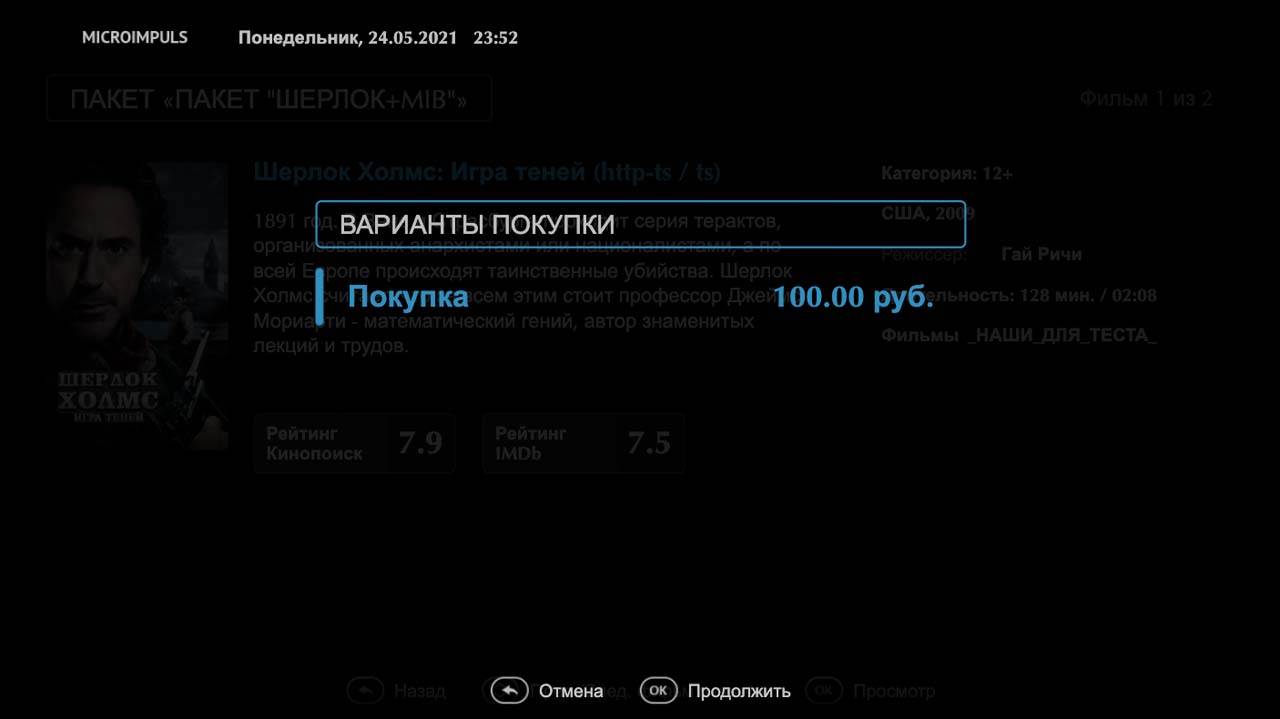
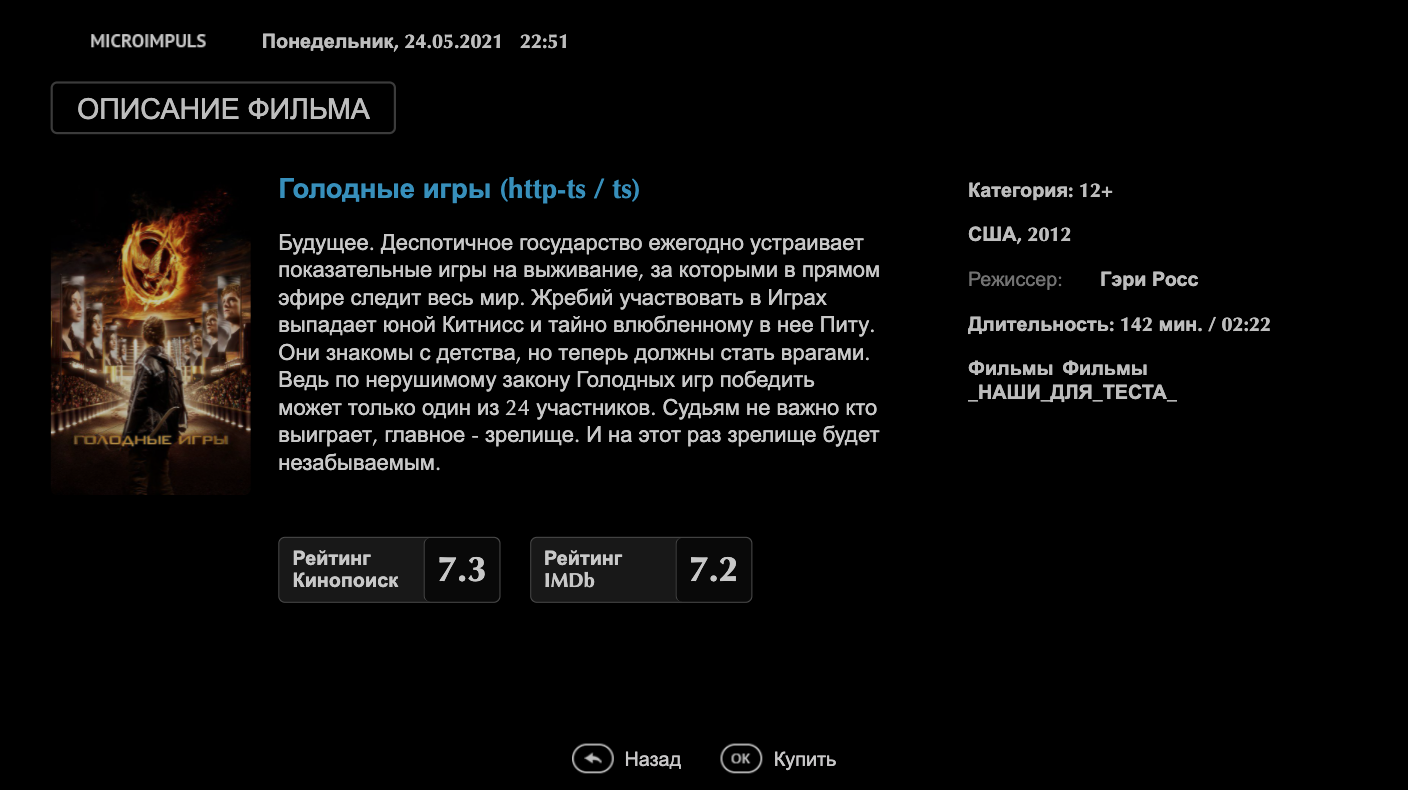
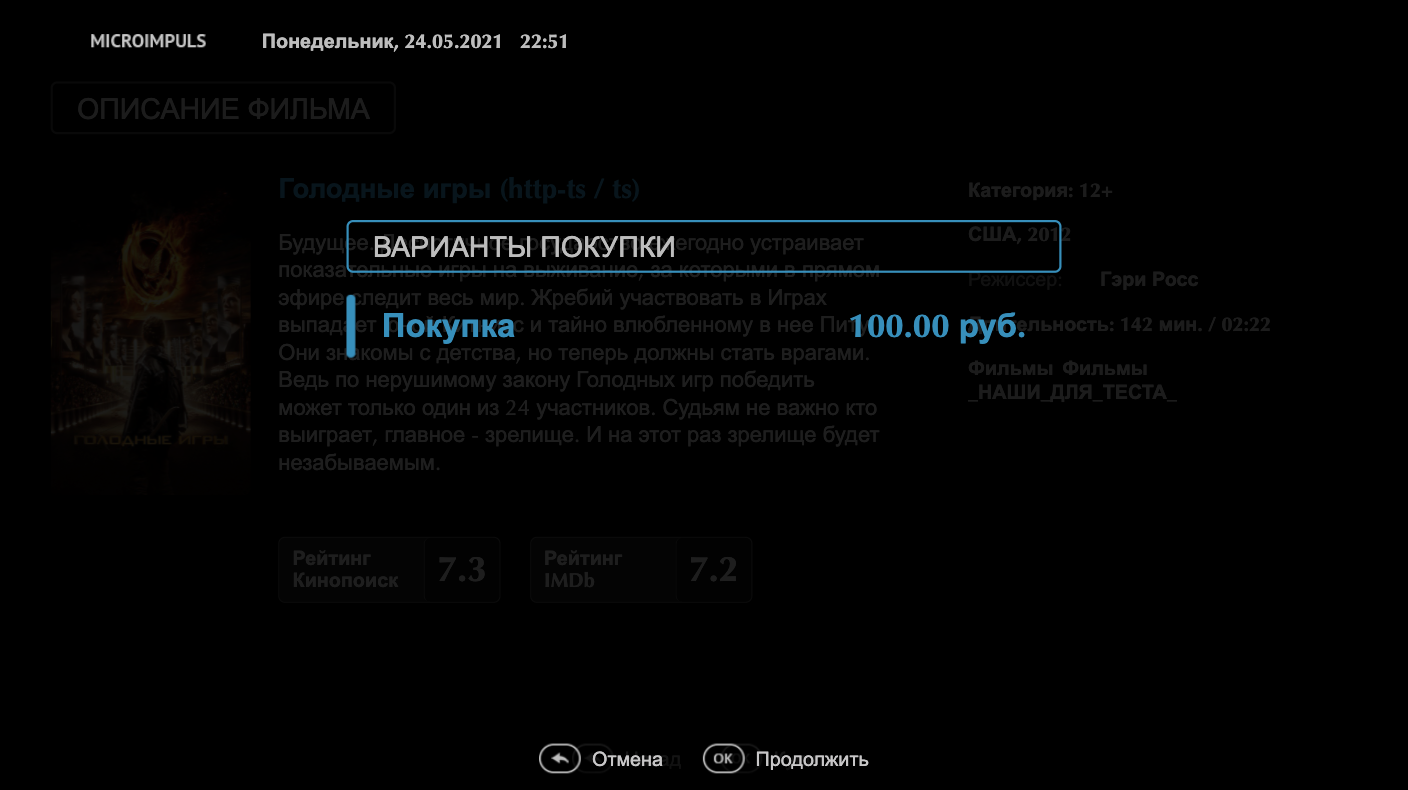
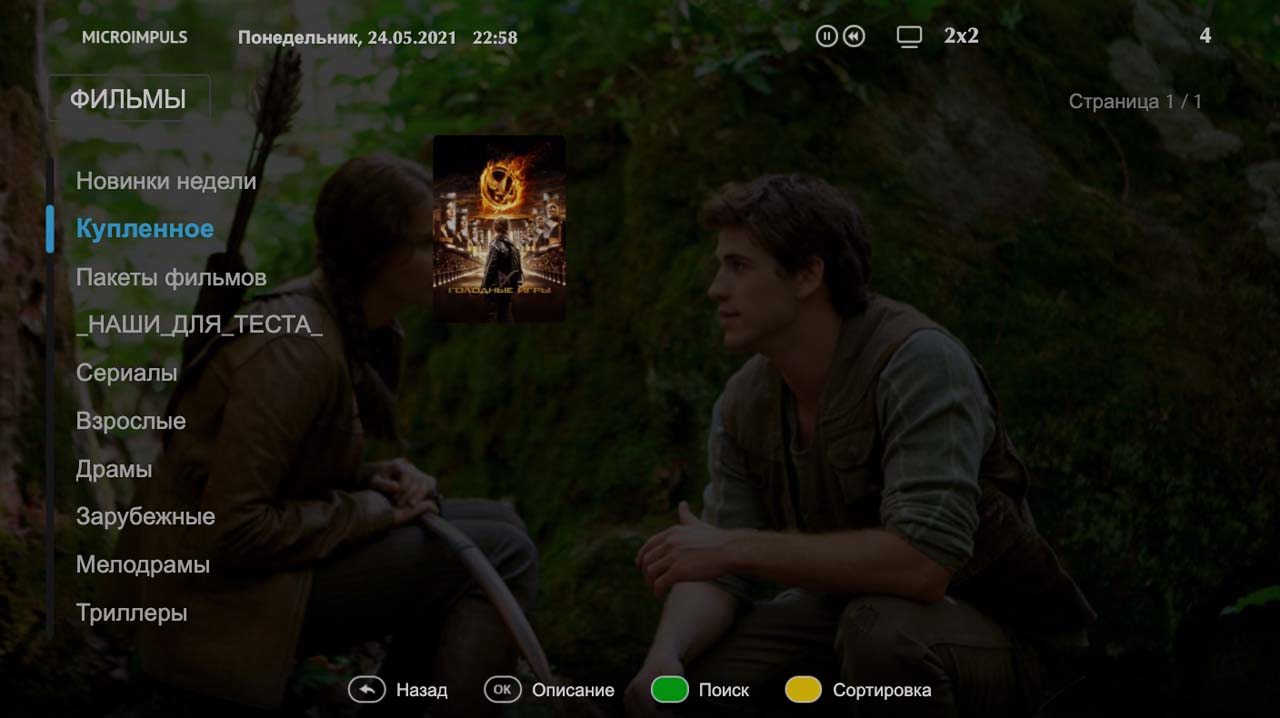
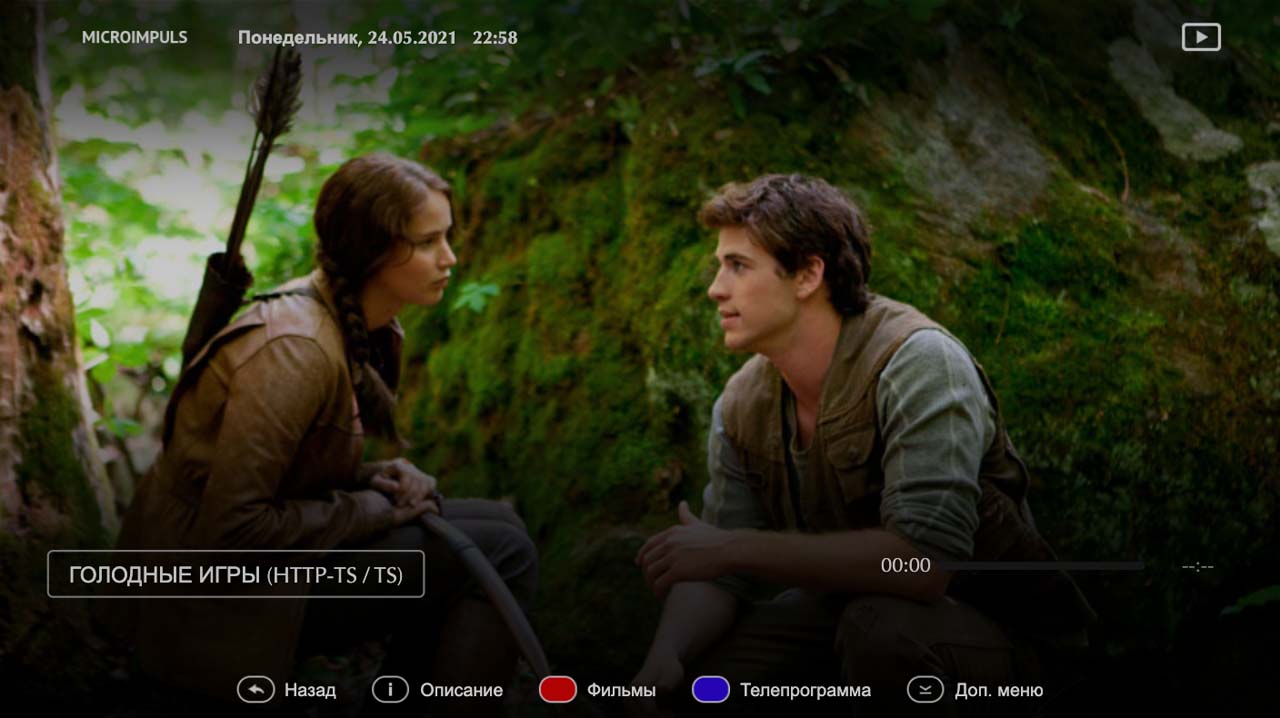
4. Ready, the film will be displayed in the list of subscribers with the package "Access to the list of the video library", when you try to launch it will be offered a purchase, after the purchase, the launch will be available, and the film will be in the category "Buyed" (how to add this category, see in the video) Futuristic interface options).
How to set up a SVOD tariff costing 100 rubles / month
- Create a tariff package "Access to the list of video library" (Billing → Tariff packages) with the following settings:
- Hidden
- Default-connected
- Access Type “Displaying Content in the List Without Launchability”
- Cost: 0
- Availability parameters: included
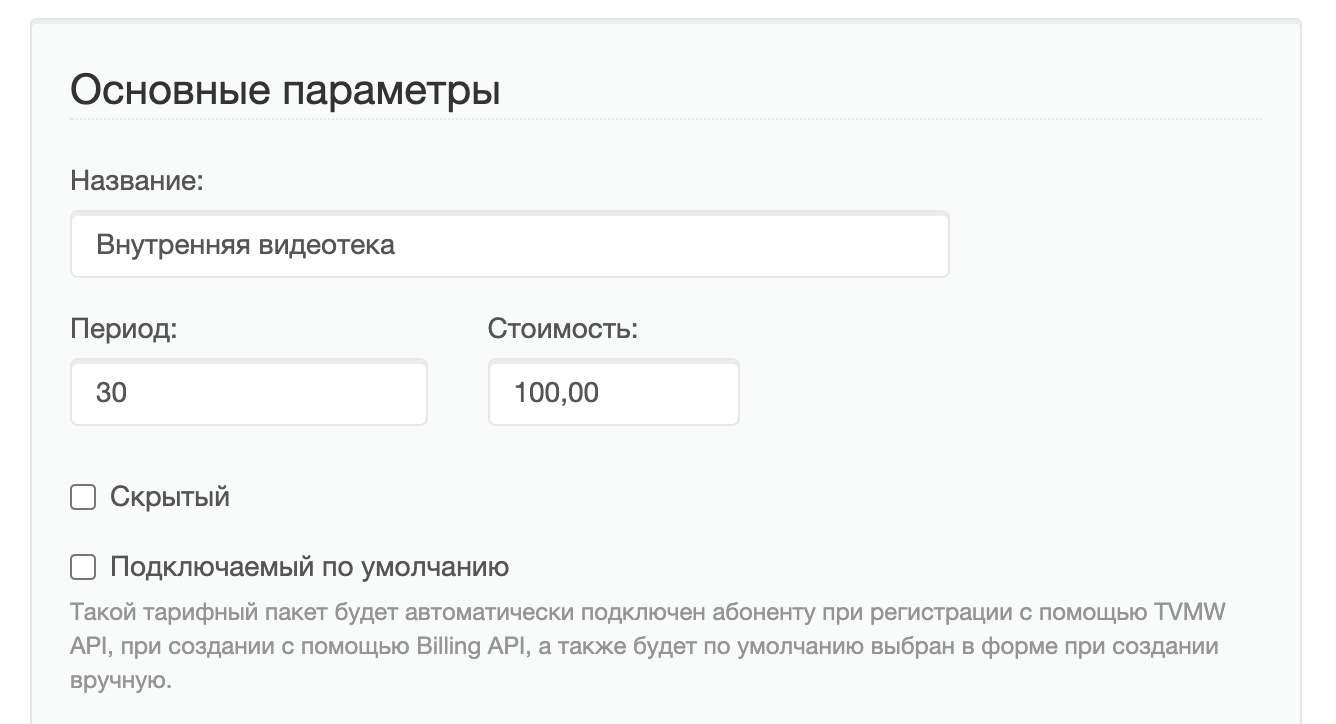
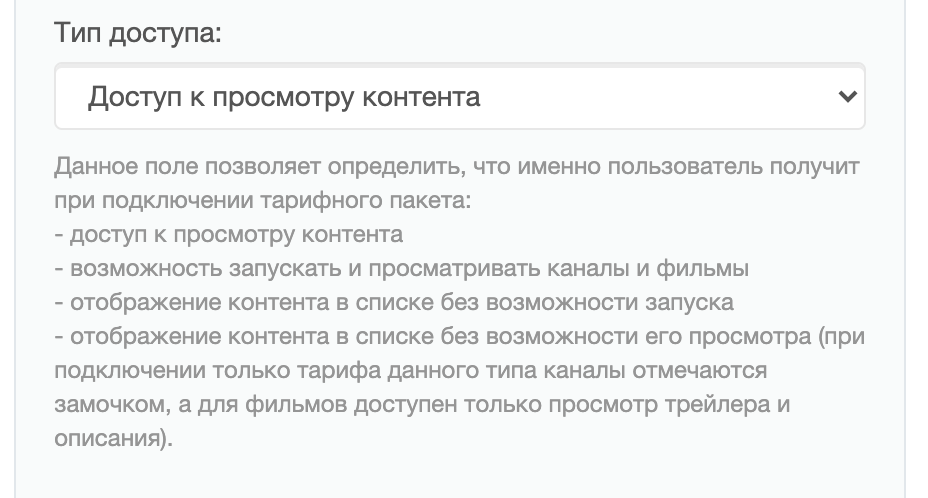
2. Create a tariff package "Internal video library" (Billing → Tariff packages) with the following settings:
- Type of access: "Access to view content"
- Cost: 100 rubles
- Period: 30 days
- Availability parameters: included
3. Assign the right films created tariffs.
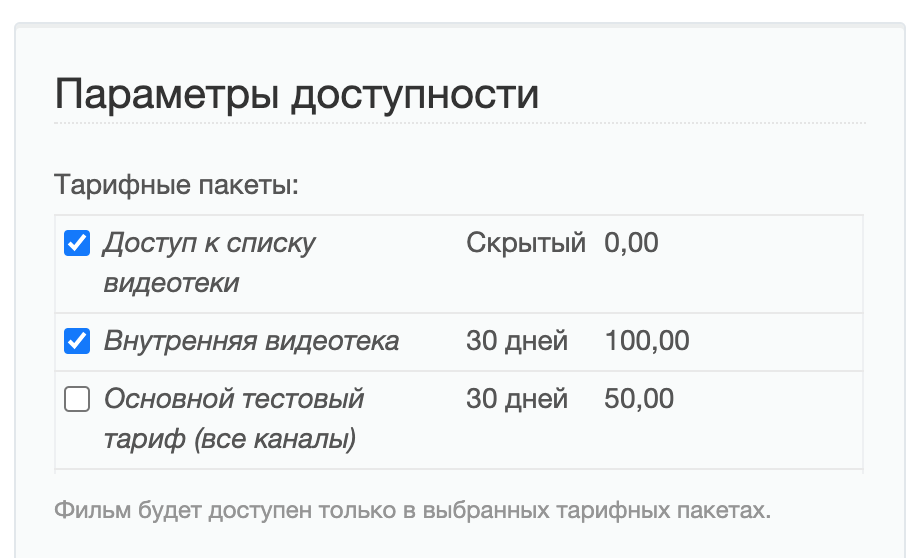
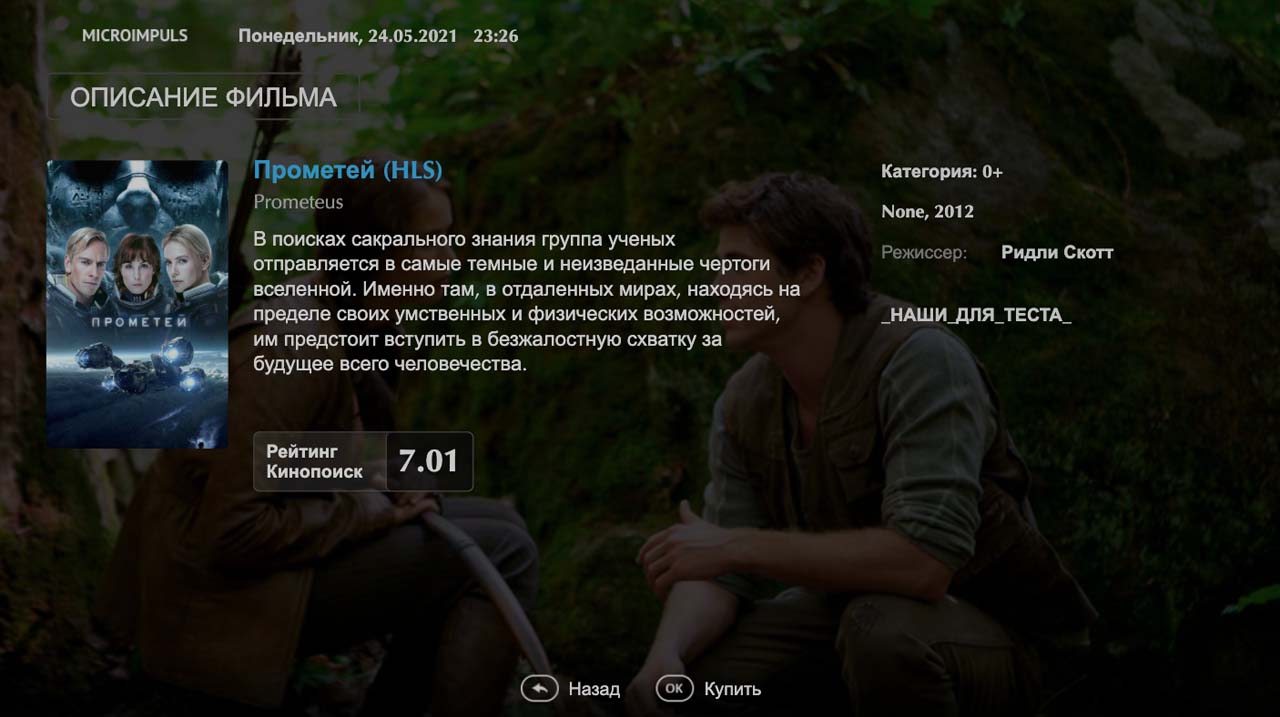
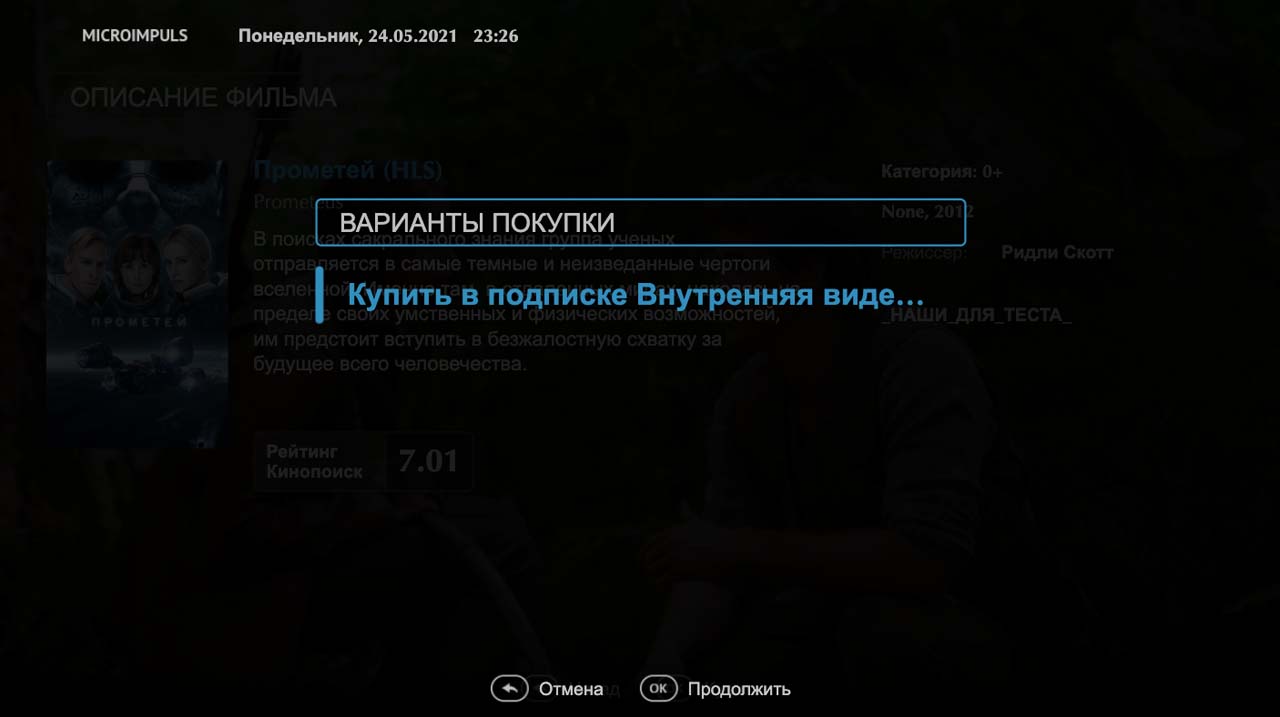
Ready, movies will be displayed in the list of subscribers with the package "Access to the list of video library", when you try to launch them, you will be offered a subscription to the tariff "Internal video library", after subscription, the launch of films will be available.
How to set up a package of films worth 100 rubles
- Create a tariff package "Access to the list of video library" (Billing → Tariff packages) with the following settings:
- Hidden
- Default-connected
- Access Type “Displaying Content in the List Without Launchability”
- Cost: 0
- Availability parameters: included
2. Create a price category "Buy for 100 rubles" (Billing → Price categories) with the following settings:
- Type: Purchase
- Name for the subscriber: "Buy for 100 rubles" (+ localization in different languages, if necessary)
- System name (the Latin identifier must be unique)
- Cost of purchase
- Period (in days)
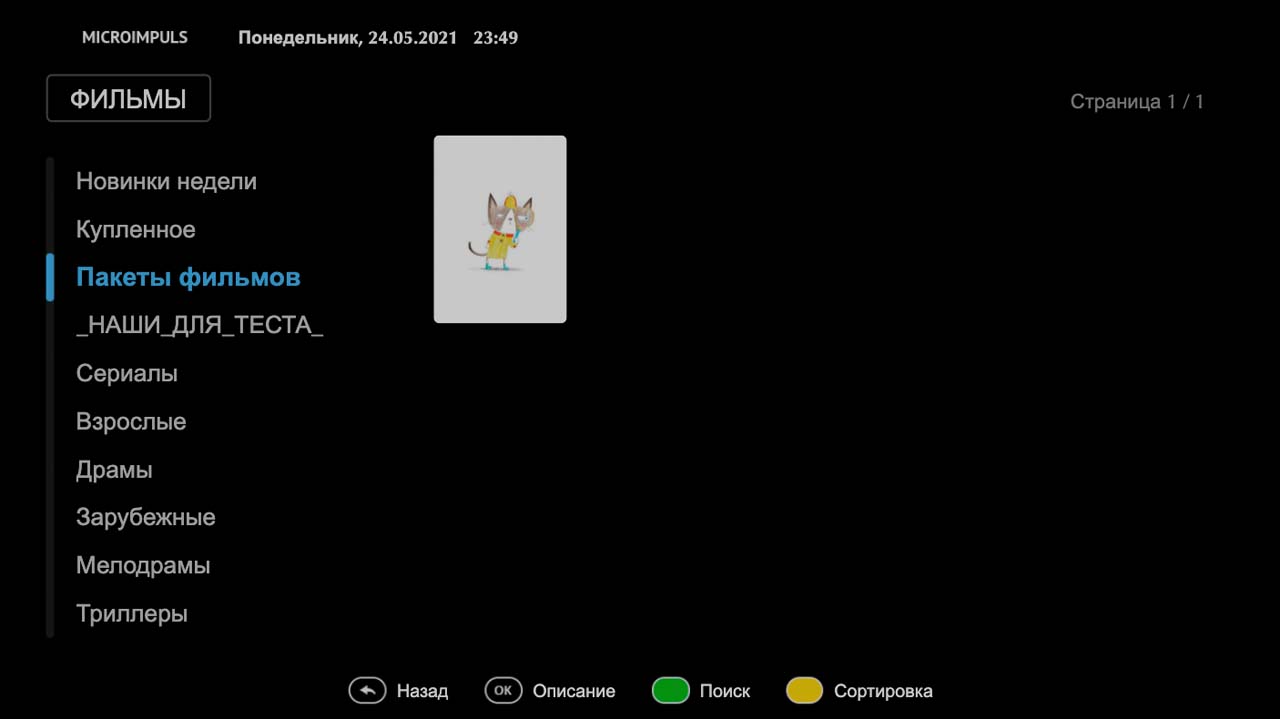
3. Create a new film with the type "Is a package", add the necessary films to it, assign the following parameters to it:
- Tariff Packages: Access to Video Library List
- Price category: Purchase for 100 rubles
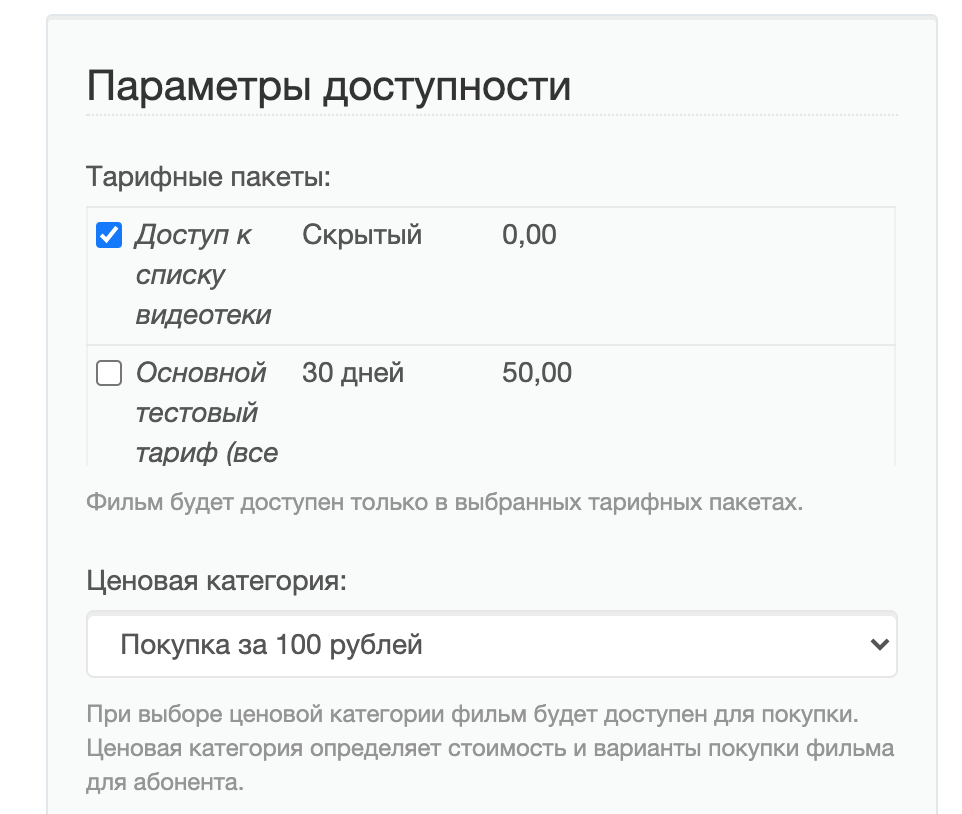
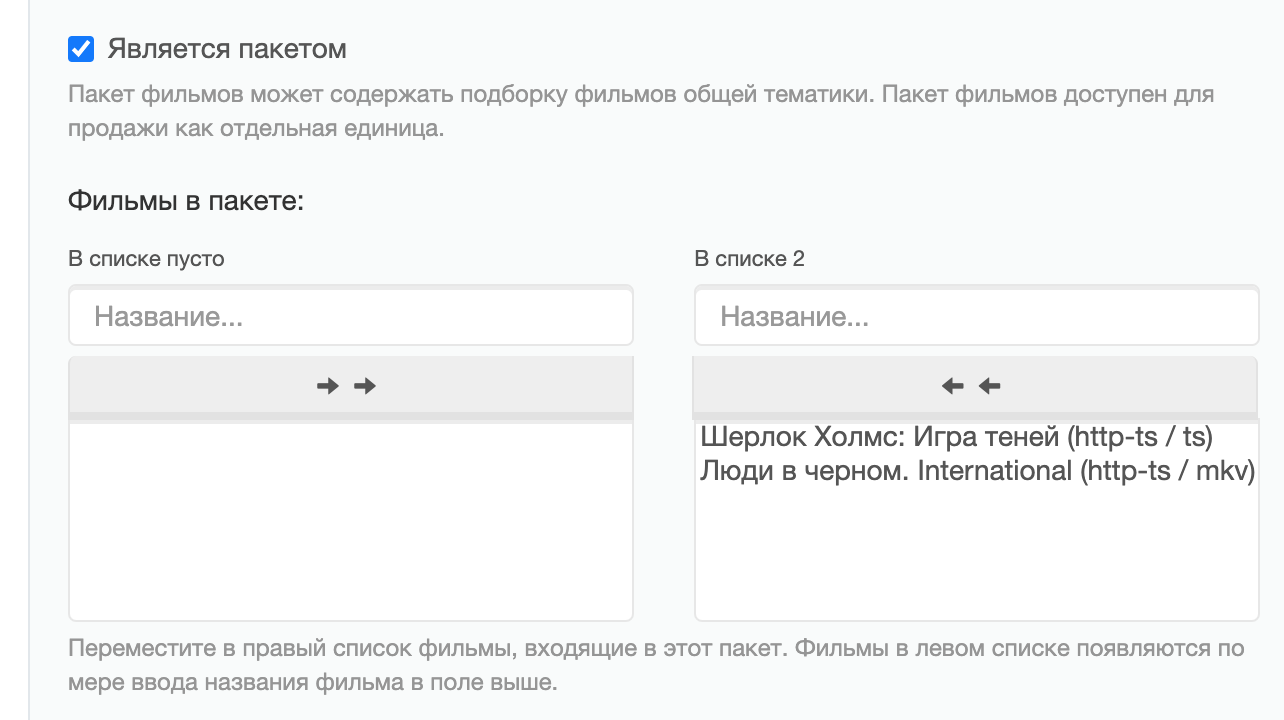
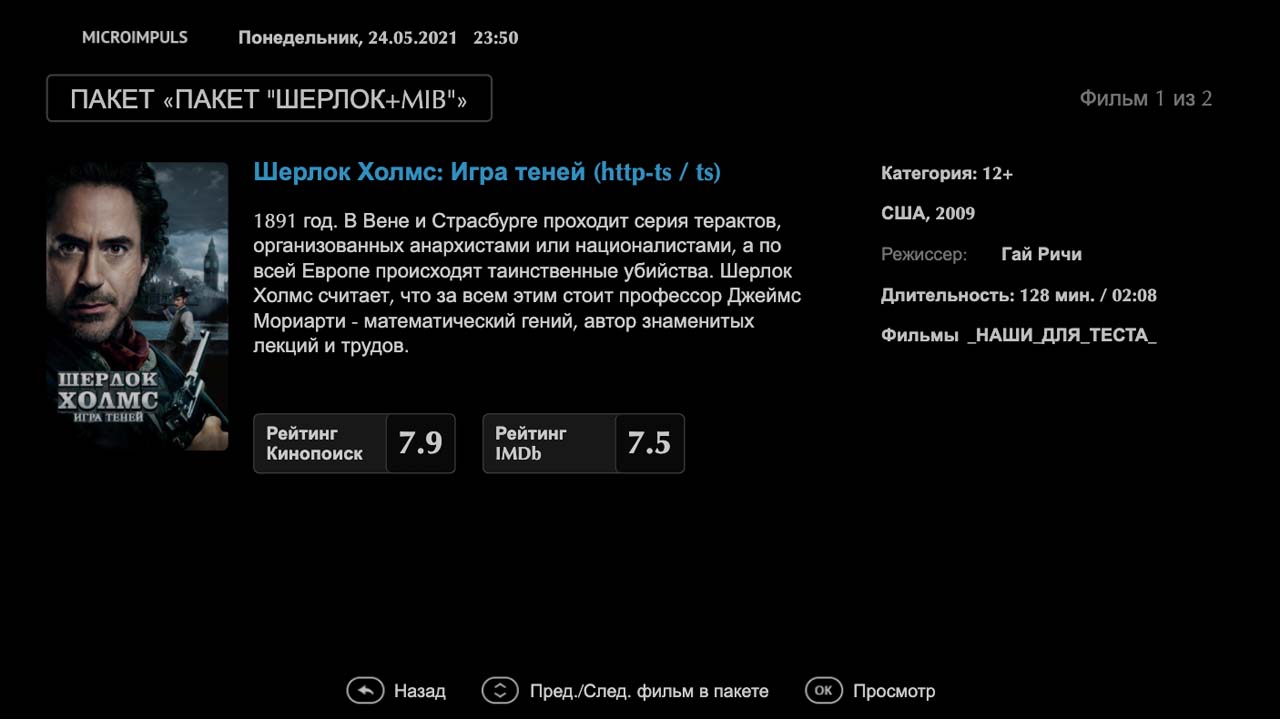
Finished, the package will be shown in the “Movie Packages” category (how to add this category, see in the “Movie Packages” category) Futuristic interface options), when the package is opened, the incoming films will be shown with the ability to flip through the left/right buttons. When you try to launch any of the films of the package, a window will be shown with an offer to purchase it, after a successful purchase, the subscriber will be able to view all the films of the package.