
Getting a live video stream from Astra
Secure HTTP Authentication

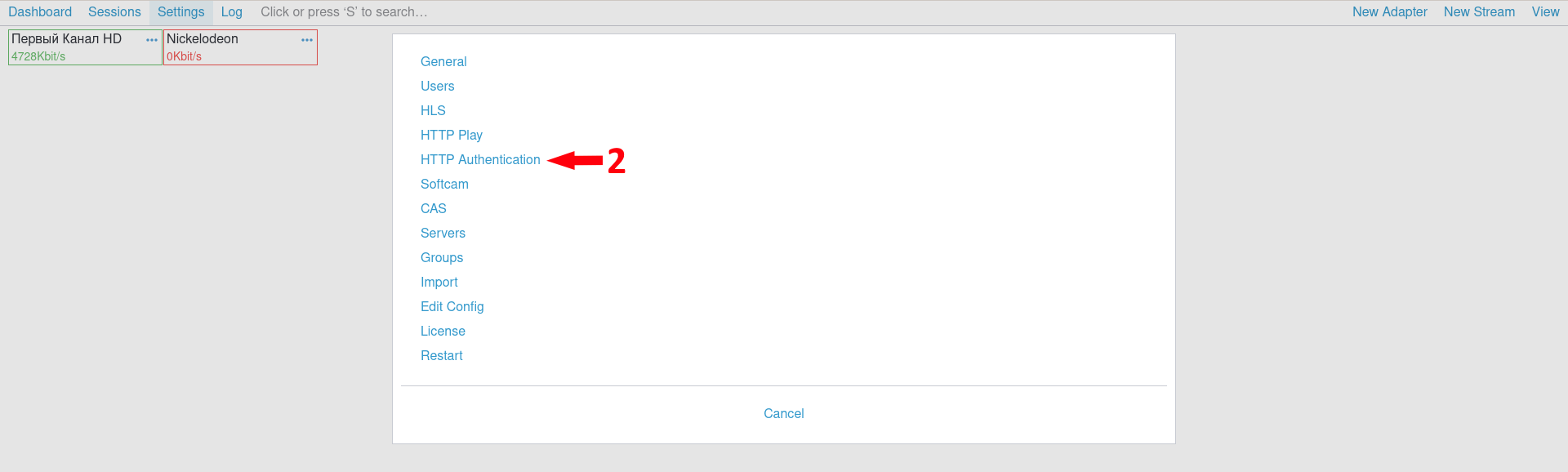
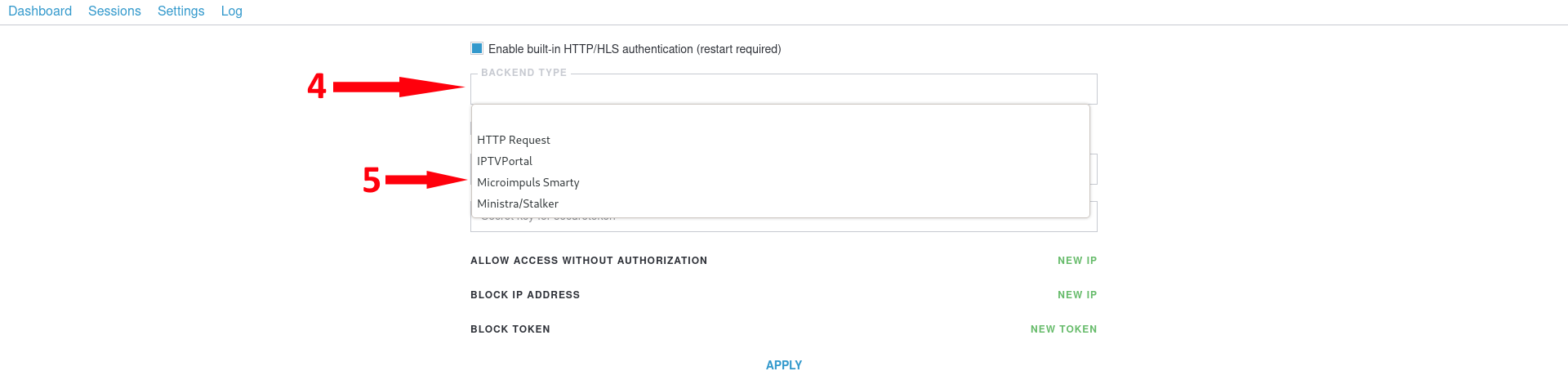
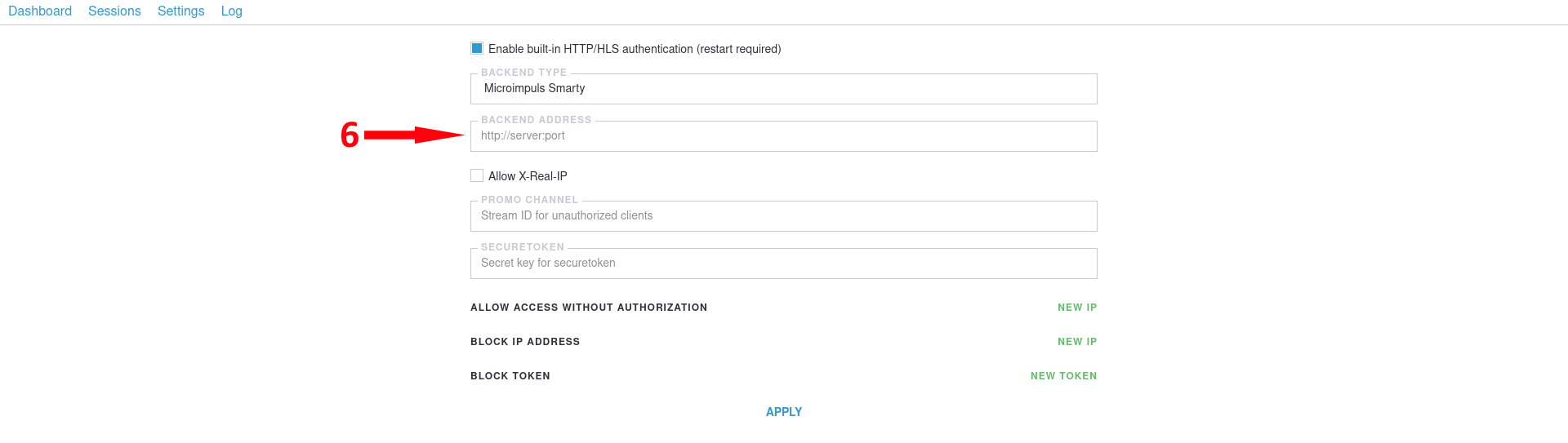
On the streaming server side Astra you need to configure the authorization backend by specifying the address to Smarty. To do this, go to «Settings» (1) → «HTTP Authentication» (2). At «Enable built-in HTTP/HLS authentication (restart required)» tick (3), in «Backend Type» (4) select «Microimpuls Smarty» (5), and in «Backend Address» — prescribe http://<Smarty URL>:<Smarty Port> (6).


Setting up HTTP Play
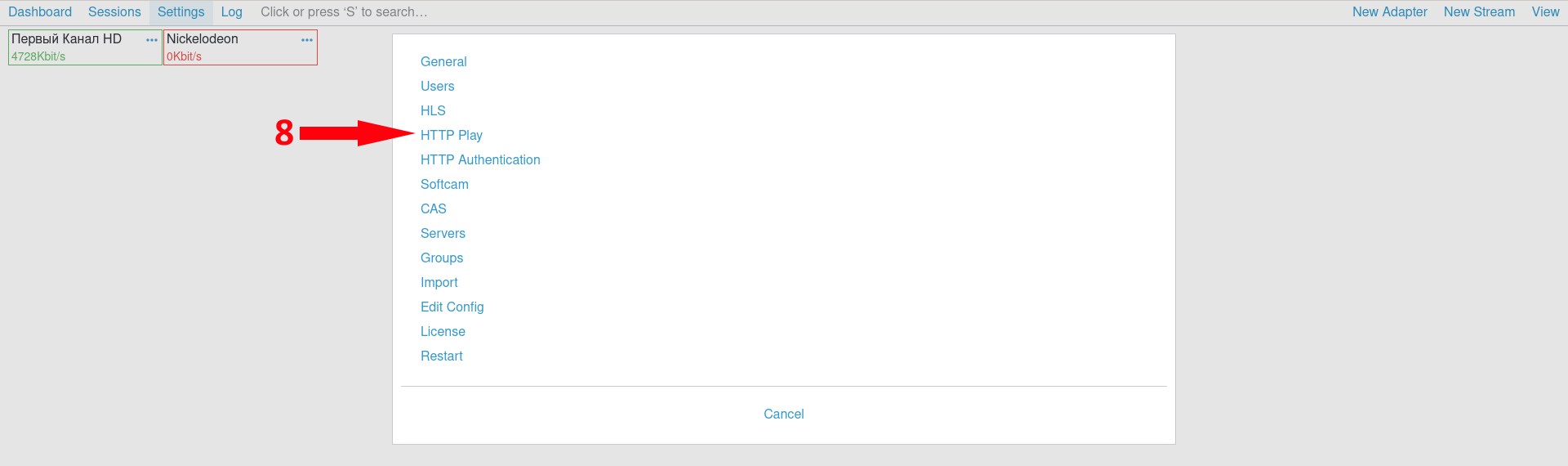
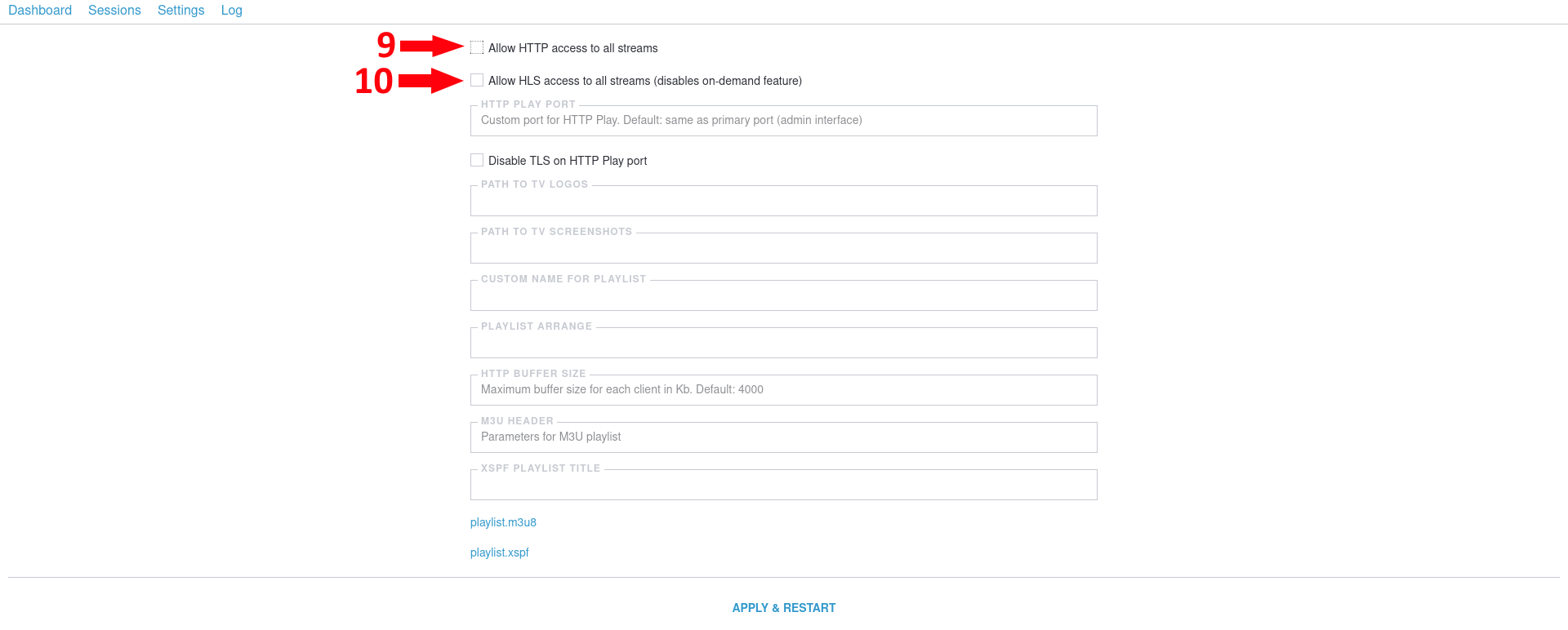
Go to «Settings» (7) → «HTTP Play» (8). Check the boxes at «Allow HTTP access to all streams» (9) and «Allow HLS access to all streams (disables on-demand feature)» (10).

Setting up a channel in Astra
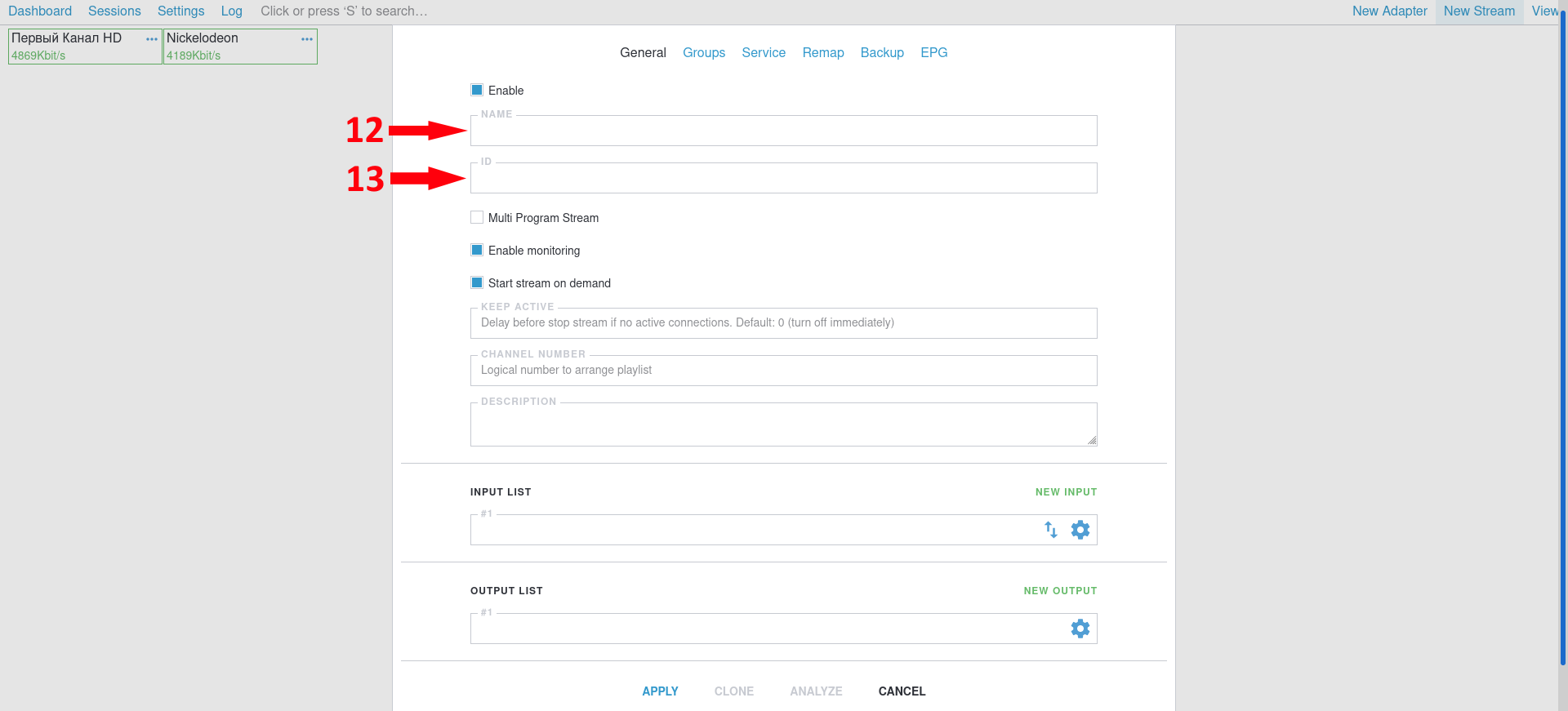
Go to «Dashboard» → «New Stream» (11). At «Name» (12) you need to enter the channel name, in «ID» (13) — the name that will identify the channel for Smarty.

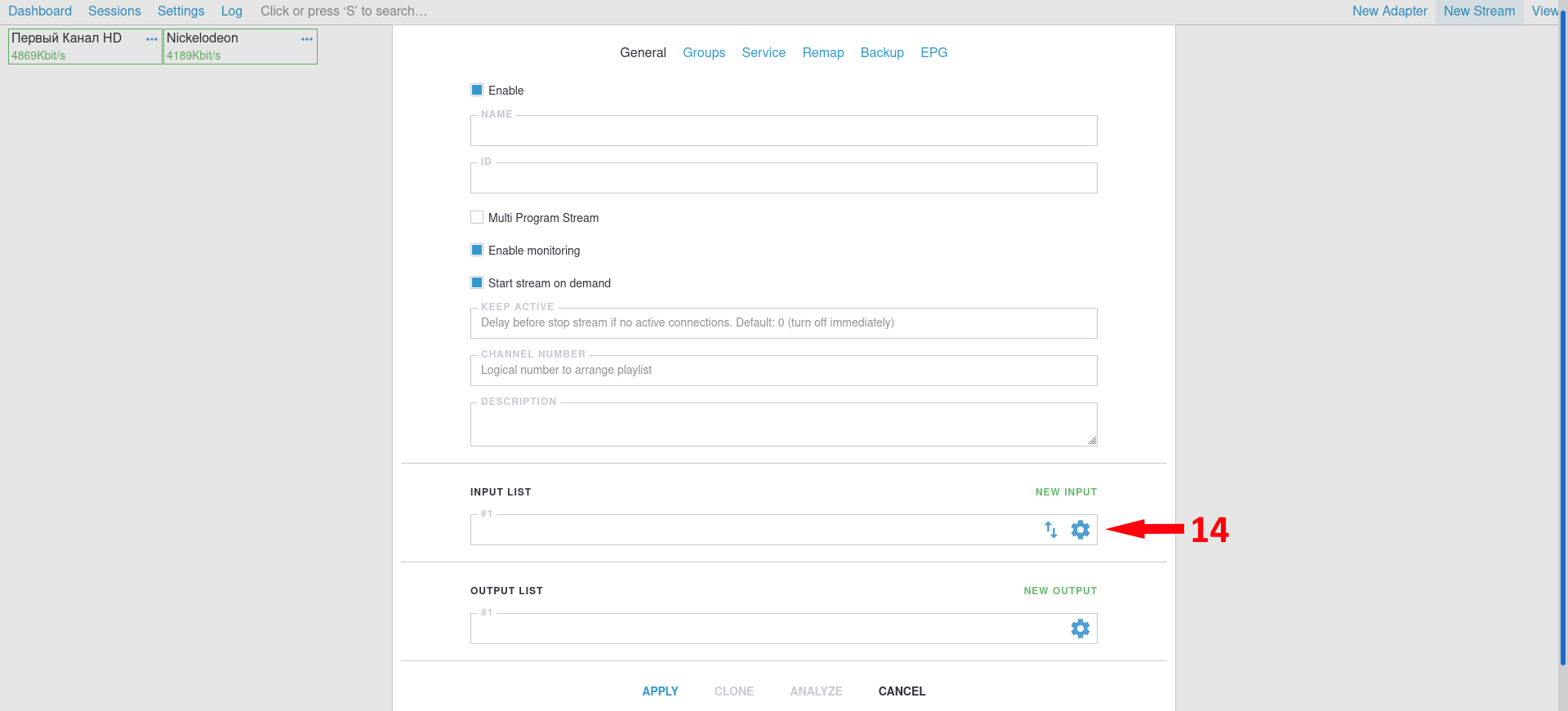
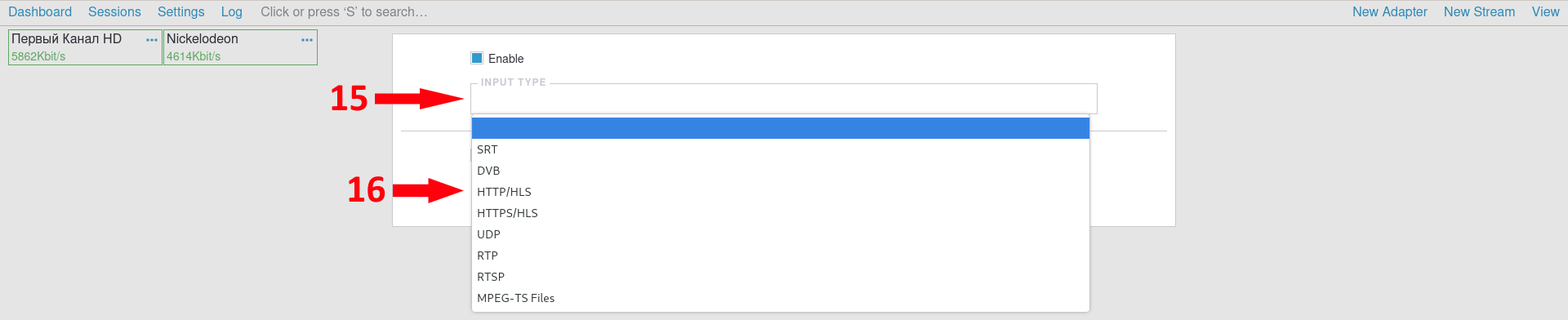
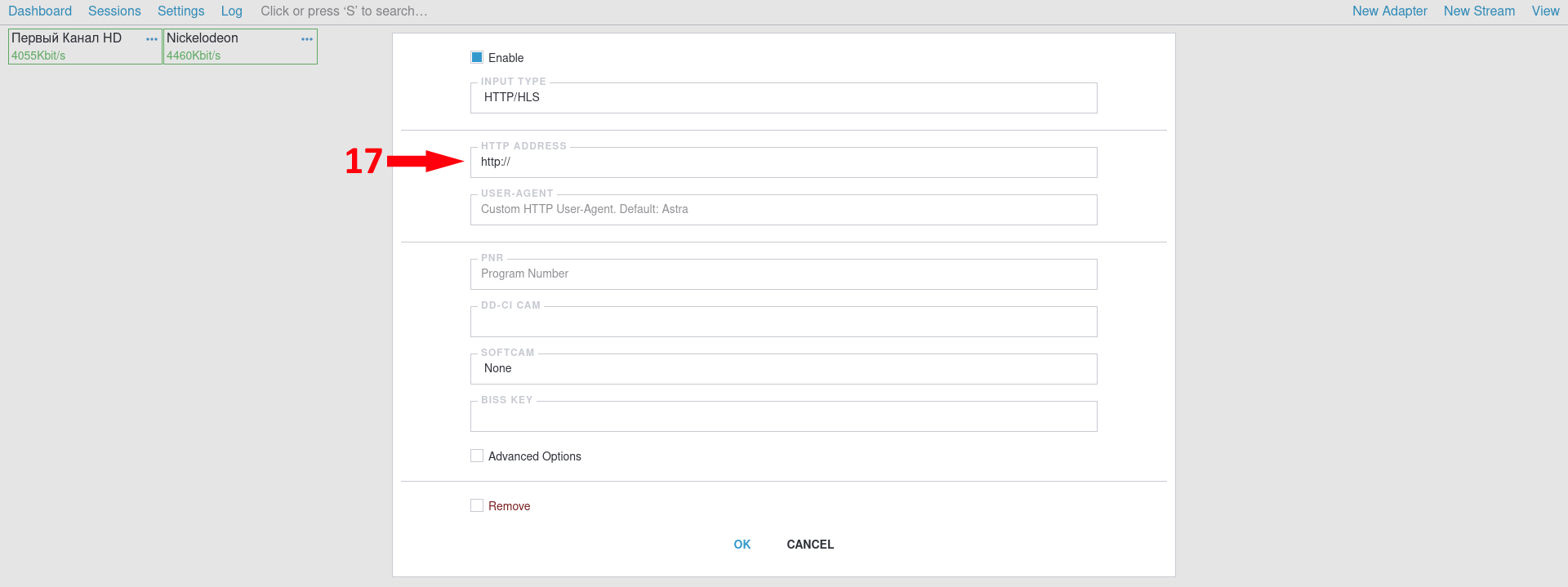
In point «Input List» press the gear (14). In the new window at «Input Type» (15) select «HTTP/HLS» (16). In «HTTP Address» you must enter the address to the channel (17).
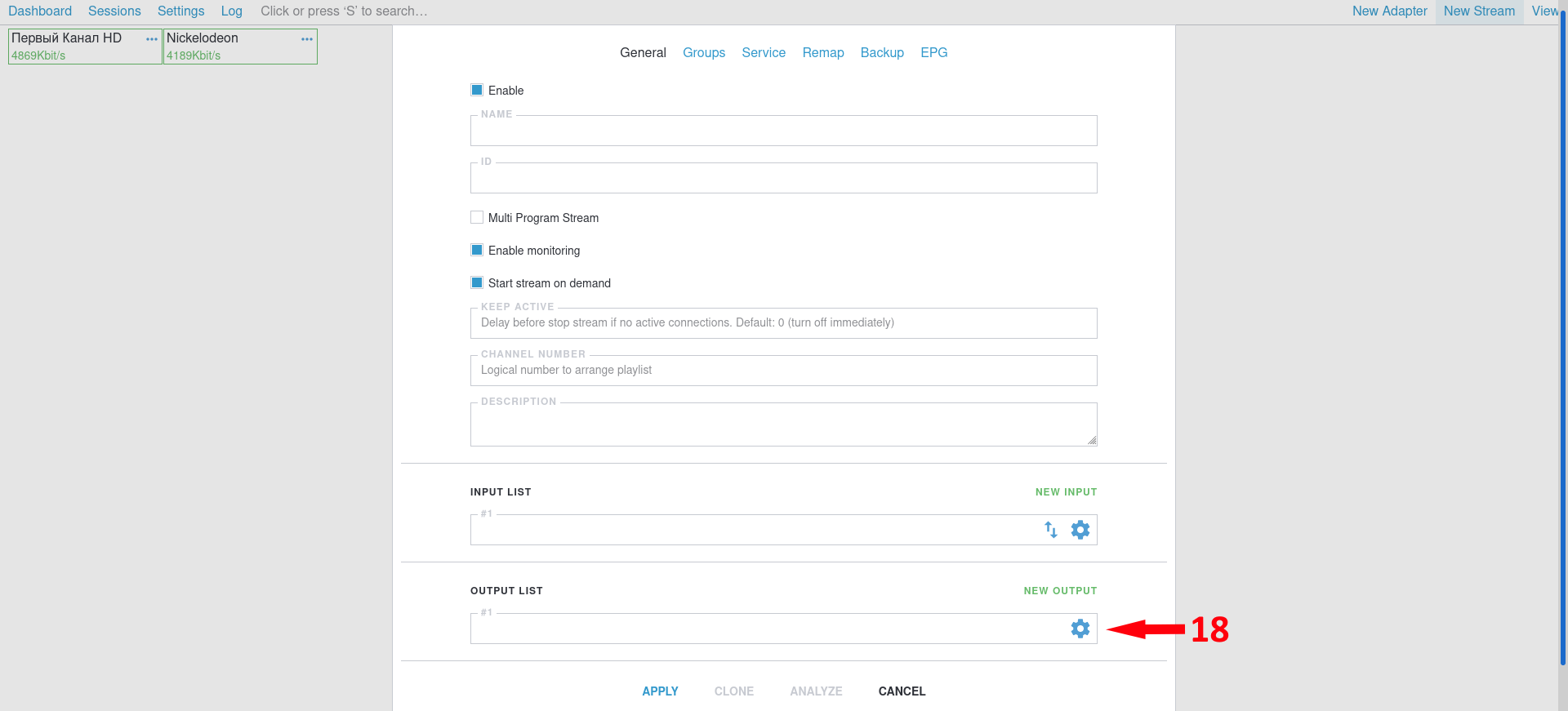
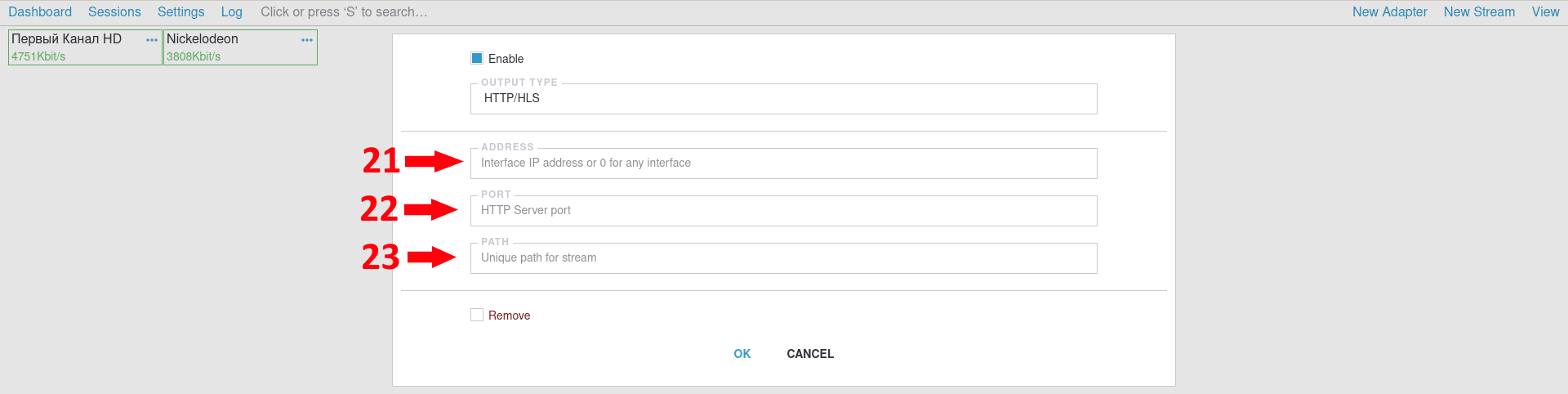
At «Output List» press the gear (18). In the new window at «Output Type» (19) select «HTTP/HLS» (20). In «Address» you need to specify IP (example: 127.0.0.1) (21), in «Port» you need to specify any port (22), but more than 8000 (example: 8001), which will be repeated on other TV channels (that is, the channel will be broadcast, as an example, on 127.0.0.1:8001), and «Path» should appear as follows: /stream//playlist.m3u8 (23).

Setting up a live streaming service on the Smarty side
Creating a live streaming service
You need to configure a streaming service for LIVE broadcasting using Astra. To do this, go to “Streaming Settings” → “Streaming Services” → the “Create” button:
- In the “Name” you must specify the name of the streaming service
- In the drop-down list "Type" select "Live Unicast"
- Пункт «Маска URL» должен выглядеть следующим образом: http://<Astra IP>:<Port From Stream Channel>/stream/$prefix/playlist.m3u8?token=$token
- In the "Availability Option" tick the item "Service is enabled"
- In the “Token generation option” in the paragraph “Connect token with content” remove the tick
Creation of Live TV Channel
You need to create a channel that will work with the streamer Astra. To do this, go to Content Settings → Channels → Create button.
The following steps are to be taken:
- In the “Name” list the name of your channel
- In the "EPG Transmission Program" you need to select the appropriate EPG Channel from which information about the current TV broadcast will be obtained
- In the "Tariff packages" select the list of tariff packages in which this channel must be present
- In the “Broadcasting Options” in the “Streaming Services” option, select the newly created streaming service (and other streaming services that can broadcast this channel)
- In the “URL prefix”, specify “ID” from the channel settings in Astra. Attention! It is recommended to use Latin letters and/or numbers
Adding a streaming service to the tariff package
After the above actions, it is necessary to add a streaming service to the corresponding tariff packages, otherwise the channel will not be displayed in the list of channels. To do this, you need to go to Billing → Tariff packages.
It is necessary to edit the tariff package to which you need to add (in the section “Includes services” in the paragraph “Streaming services”) the streaming service created above.
